

- Resources
- Manuals
Commissioning provider guide
Reviewing startup reports through a link.
A mechanical contractor using StartupSend has sent you their startup reports to review. You need no account and no password. Read each report, comment on any reading, then return it for fixes or approve it.
Your review link #
The contractor emails you a link to startupsend.com/review/..., or sends it to you themselves. Open it on a computer or a phone. That is all.
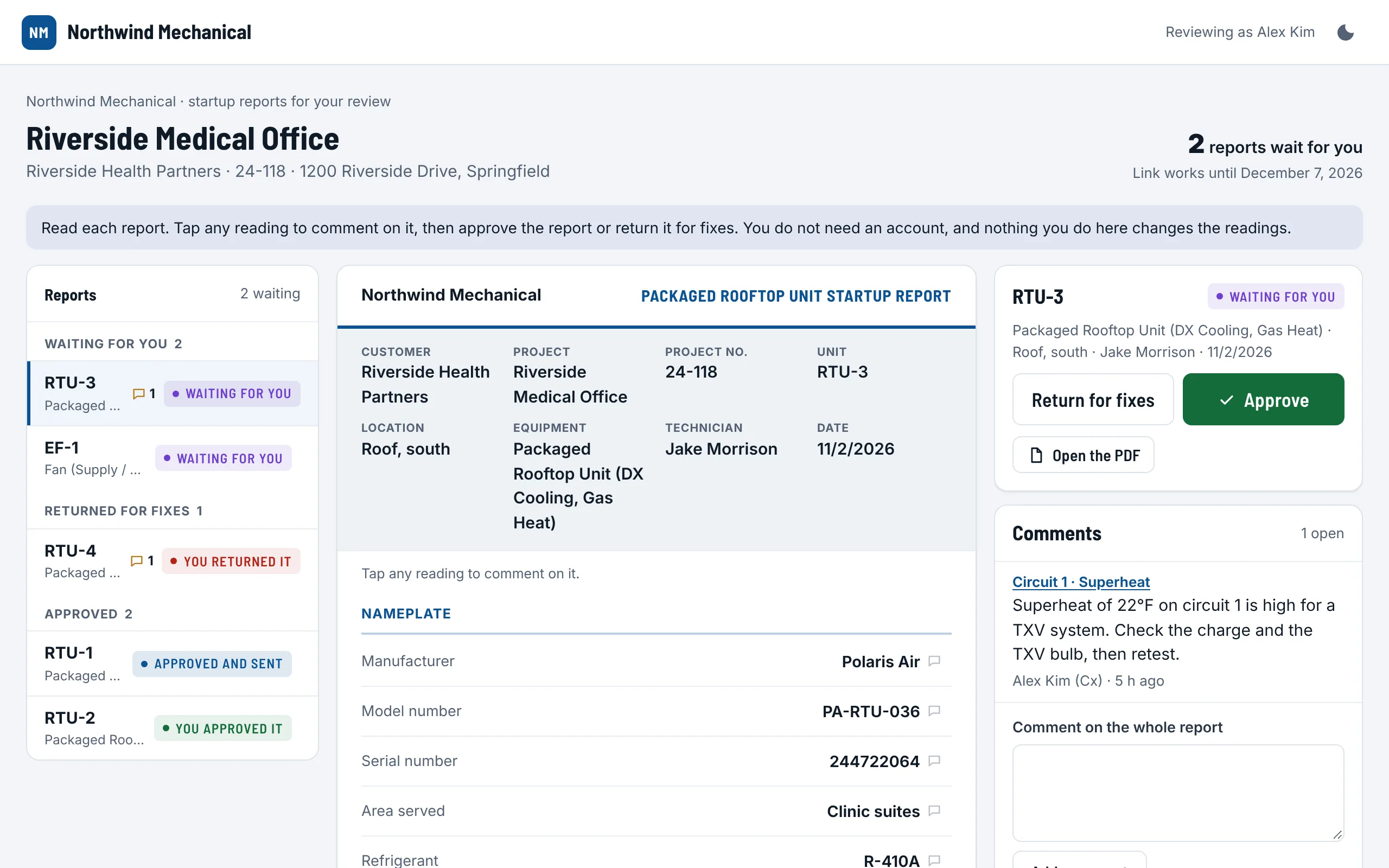
- The page carries the contractor's name and logo, and the project's name, customer, number and address.
- The top says how many reports wait for you and the date the link works until.
- The link shows one project: either every report the contractor sends you on it, or only the ones they picked. Reports join it as they are sent; you do not need a new link for each one.
- Keep the email. Anyone with the link can open it, so do not forward it outside your team.
Reading a report #
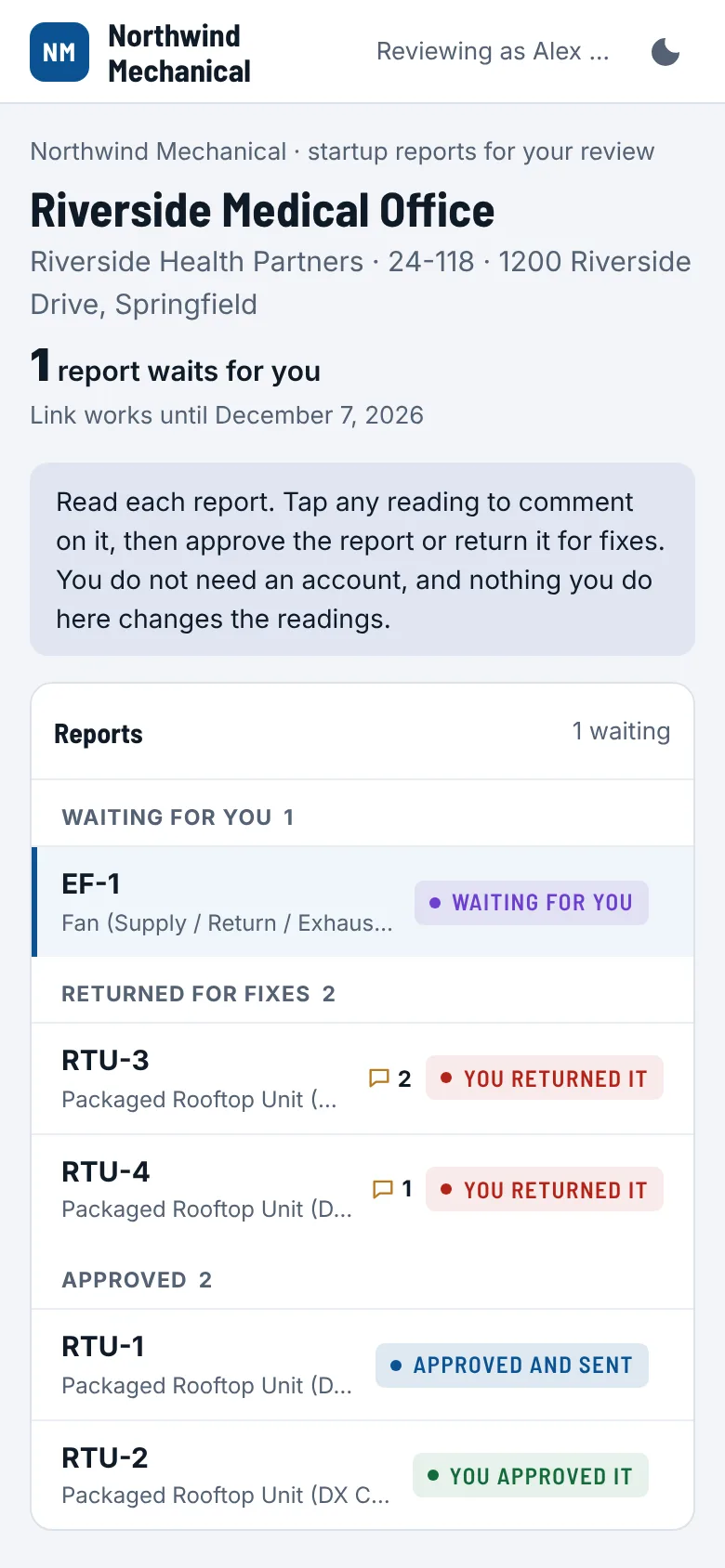
- The list groups the reports: Waiting for you, Returned for fixes and Approved. A speech-bubble count shows open comments.
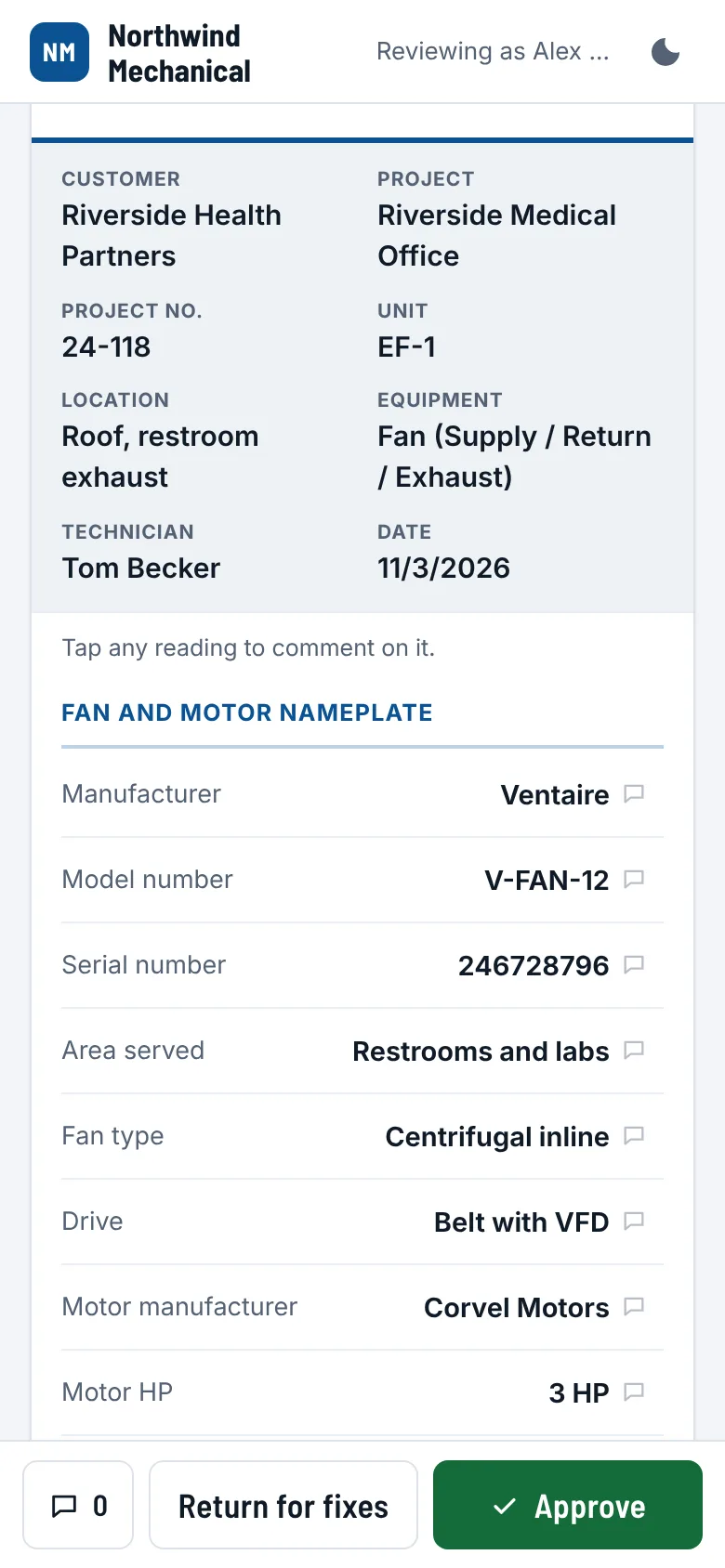
- Click a report. It opens as the sheet the contractor prints: their header, the unit's details (customer, project, unit, location, equipment, technician, date), then every section.
- Every reading is there as it was entered: nameplate values, the readings in each mode and on each circuit, L1, L2 and L3, the checklist answers, the notes, the photos and the tech's signature. A blank shows as a dash.
- Move through the reports with the arrows at the top, or All reports to go back to the list.
Comments #
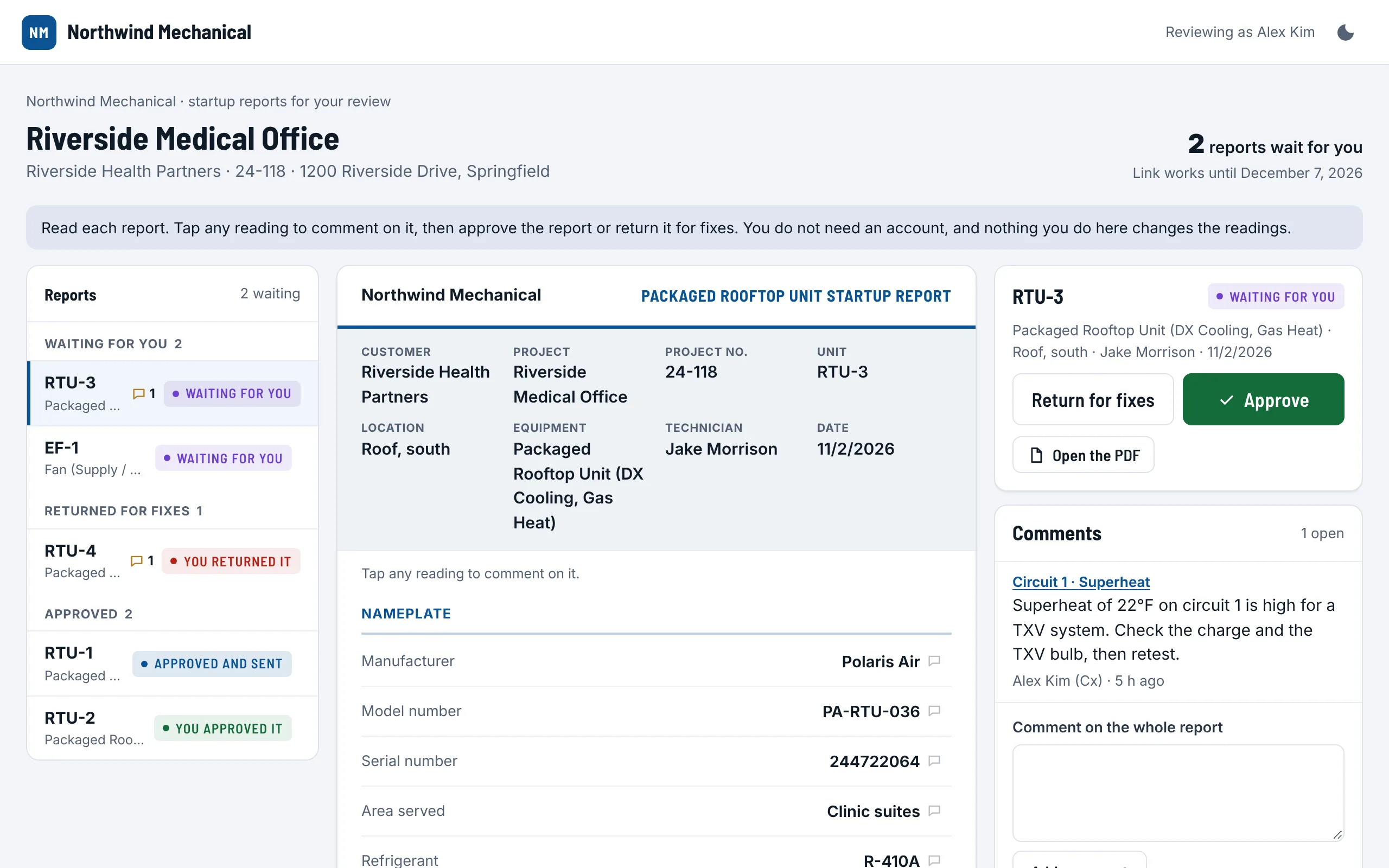
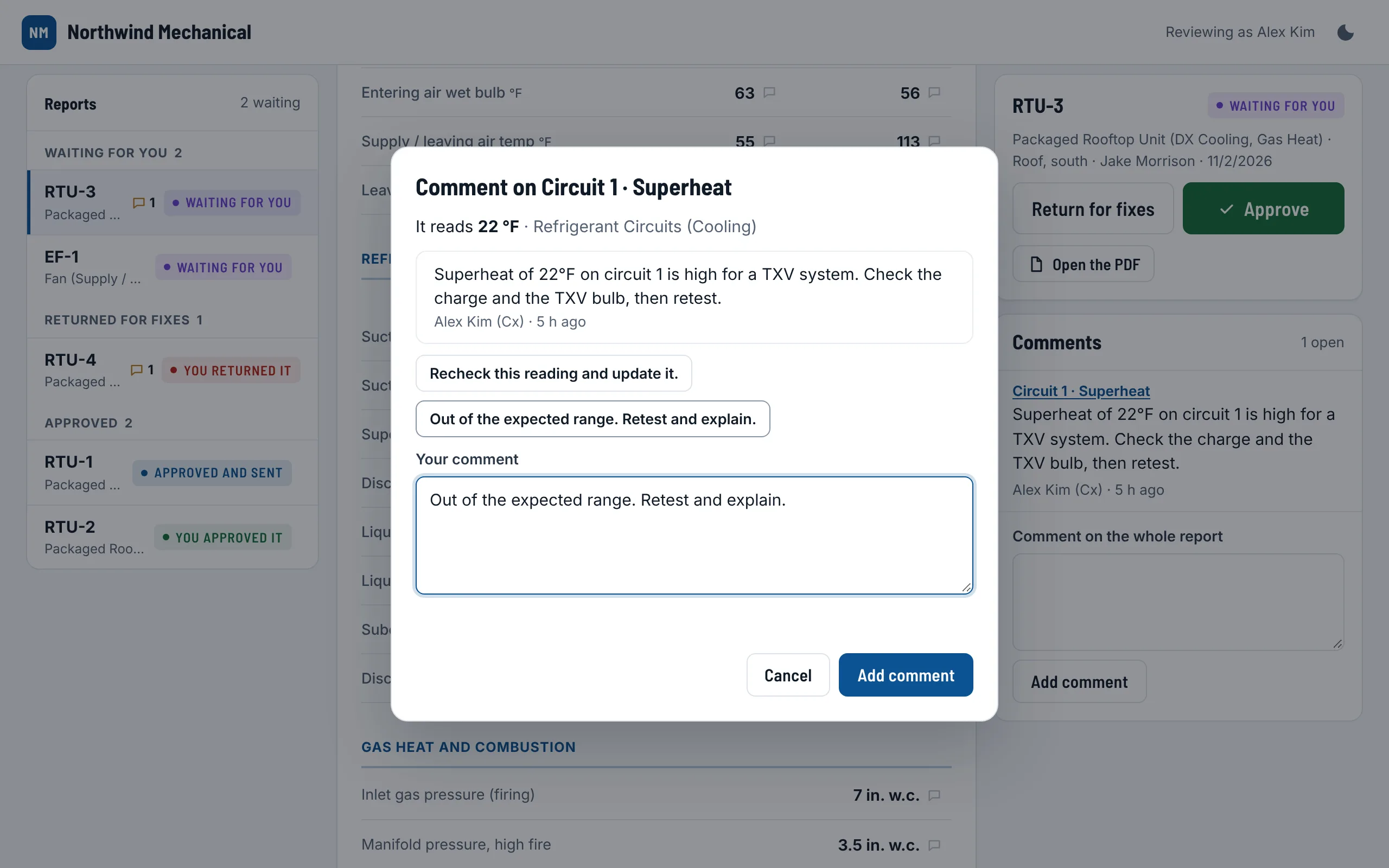
- Click any reading on the sheet. Each one is a button.
- The box shows what it reads. Pick a ready-made comment ("Recheck this reading and update it." or "Out of the expected range. Retest and explain."; for a blank, "This is blank. Fill it in."), or write your own.
- Choose Add comment. The reading gets a small count, and the comment is listed beside the report.
- For the whole report, write in Comment on the whole report under the comments.
- Click the name of a reading in the comment list to jump to it on the sheet.
- Take back removes one of your comments while the report still waits for you.
- The contractor's own internal review comments are not shown on your link: you see yours, and what the report says.
Returning a report for fixes #
- Comment on the readings that need another look.
- Choose Return for fixes.
- Add a note for the tech, if you want one. With no comments, a note is needed: say what to fix.
- Choose Return for fixes. The next report waiting for you opens.
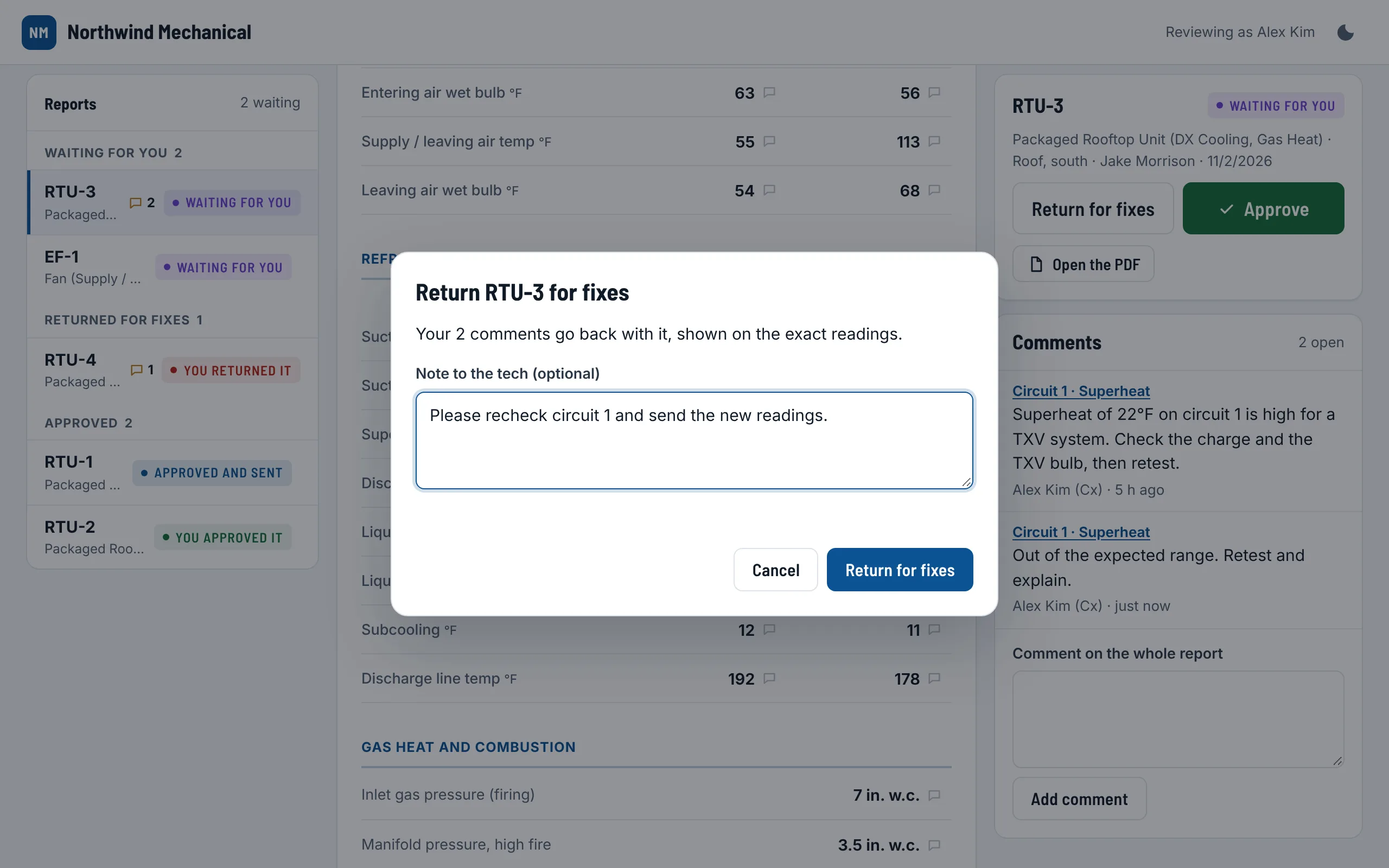
The report goes straight to the top of the techs' phones with your note. Your comments show on the exact readings, with a button that takes the tech there. When it is fixed, the contractor sends it back to your link.
Approving #
- When the report is right, choose Approve.
- The next report waiting opens by itself. The message says what is next, or that nothing else is waiting.
- Changed your mind? Choose Undo in the message, or Change my decision on the report. It goes back to waiting for you.
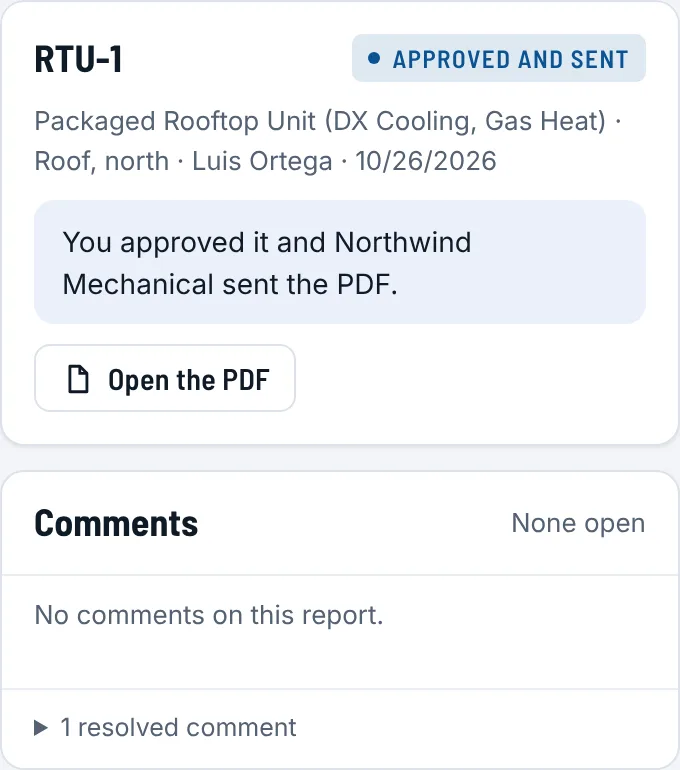
Approving resolves your comments on that report; they stay in its list, folded under resolved comments. The contractor then sends the final PDF.
When a report comes back Parts being finished #
A report you returned comes back to Waiting for you once the contractor has fixed it and sent it again. Your earlier comments are still there, and a comment on a reading that changed says so: "was 3, now 9".
How the visit ended, and open items
Each report says how its visits stand: Complete, Complete, with open issues, or Partial with what is left ("Come back for: Heating (No gas yet)"). Its open items are listed with what is wrong, how bad it is and who fixes it; resolved ones say how they were fixed. A part not on the unit says so, and a part put off says why.
A return visit is a revision of the same report
When a tech comes back to finish a unit, there is still one report for it. It says Revision 2 (with its date and when it was first sent), lists each visit with its date and tech, notes which visit each section came from, and shows any value a later visit changed. The contractor's final PDF is that one combined report, and it replaces the one they sent before.
Being finishedMore of the reviewer's side of revisions is being finished, such as how a revised report takes the place of the earlier one on your link and its history there. This guide will show it when it is in the app.
Downloads and the final PDFs #
- Open the PDF on any report downloads it as the contractor prints it: their design, every reading, the photos and the signature.
- After you approve, the contractor sends the finished set as one PDF, usually with a cover page and a contents list, by email from StartupSend.
- Your link stays open until the date at the top, so you can come back to any report you reviewed.
What you can trust #
A startup report is only worth what you can check. This is what StartupSend does so you can rely on what you read.
The readings
- The raw readings are on the report. Superheat and subcooling sit next to the pressures and line temperatures they come from, and the refrigerant is on the nameplate, so you can check the math in seconds. The tech's phone works them out from a published pressure and temperature chart; the tech decides what goes on the report.
- Out-of-range numbers are pointed out to the tech while they type (superheat high for a TXV, amps over the nameplate, voltage imbalance). It never stops them, so a report you read is what they found.
- Parts not done are said plainly: a section or a column not on the unit prints "Not applicable on this unit", never a row of blanks.
- Every change is kept on the contractor's side, with who made it and when, including values taken from the weather or read off a tag photo. Nothing on your link can change a reading.
- The tech signs on the phone at the end of the visit; the name and date print with the signature.
The link
- It is long and unguessable, and StartupSend keeps only a fingerprint of it, not the link itself.
- It shows one project's reports that were sent to you, and nothing else of the contractor.
- It ends on the date shown, and the contractor can extend it or turn it off. They see when it was opened.
- A report the contractor reopens to change leaves your link until they send it to you again.
On a phone #
The same link works on a phone, on site. The list comes first; tap a report to open it. Return for fixes and Approve stay at the bottom of the screen, with the count of comments beside them.
If the link does not open #
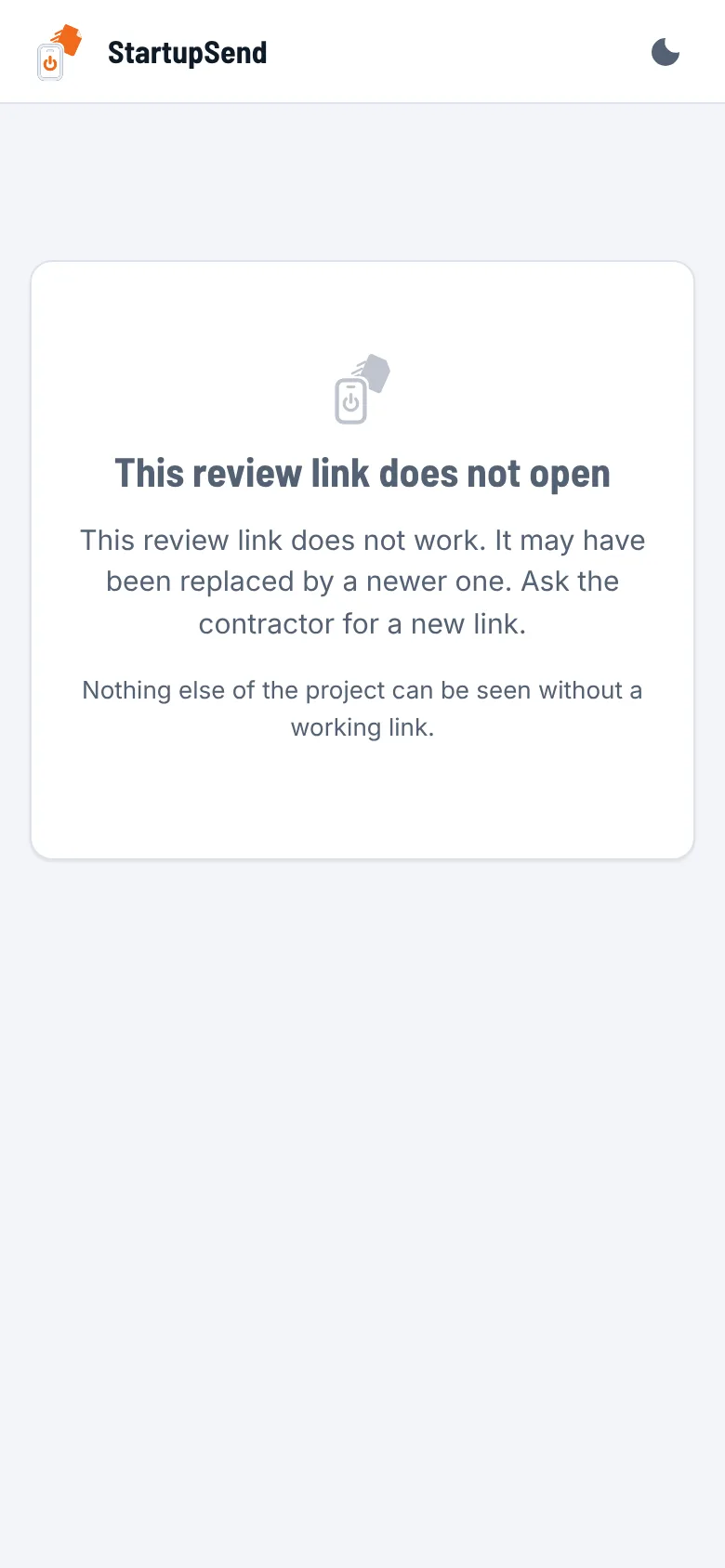
The page says This review link does not open, and why: it has ended, it was turned off, or the address is not complete (open it again from the email).
Ask the contractor for a new link. On their side it is one button, and your comments and decisions stay with the reports.
Questions about StartupSend itself: contact us, or see StartupSend for Cx providers.
Get complete startup reports from every contractor.
Point the mechanical contractors on your jobs to StartupSend, and review every unit the same way.