

- Resources
- Manuals
Field tech guide
Startups on your phone.
You do the work on the unit. The phone keeps the report. This guide is one step per line, with a picture of your screen. Print it and keep it in the truck.
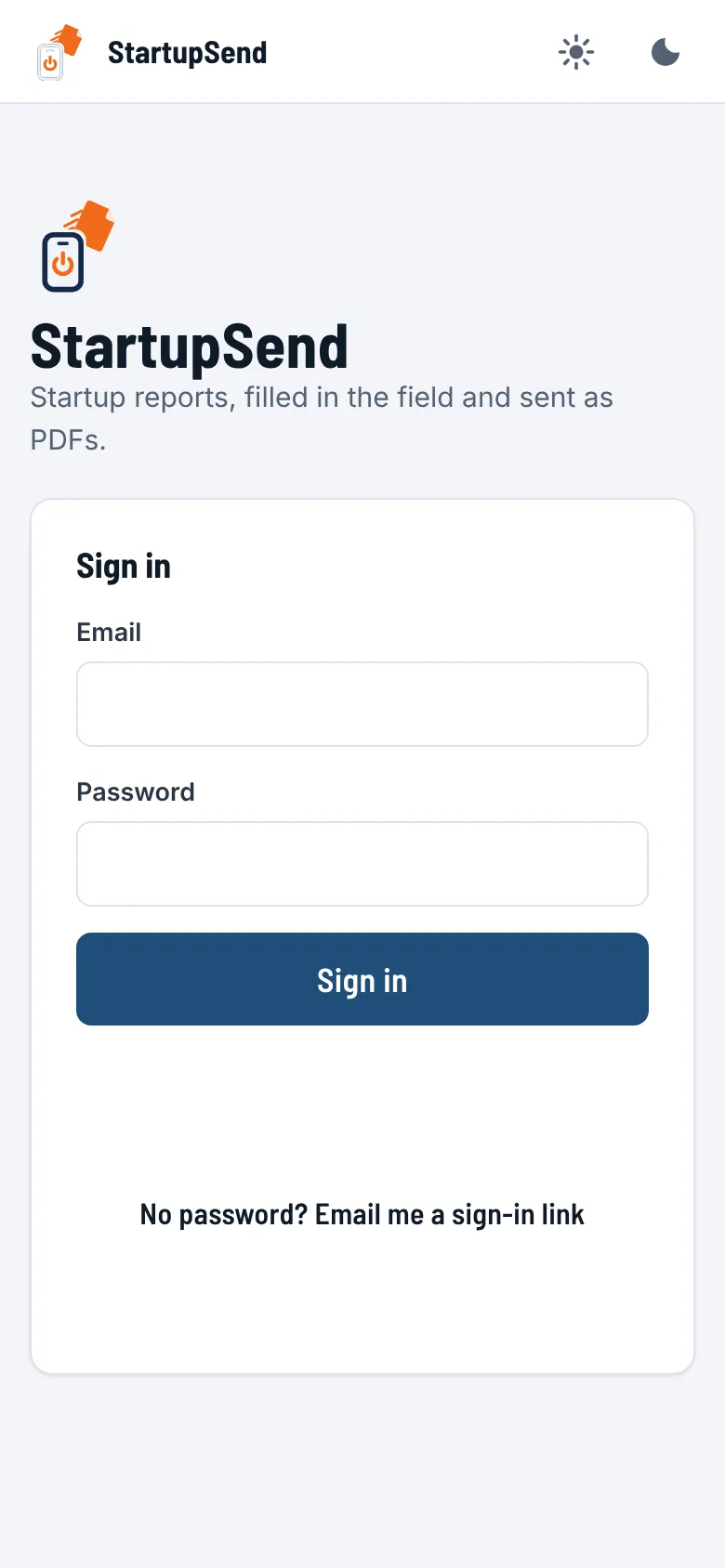
Sign in #
- Open the link your office sent you. You are in.
- No link? Go to startupsend.com and tap Sign in.
- Type your email and password. Tap Sign in.
- No password? Type your email. Tap Email me a sign-in link.
Got a temporary password? Sign in with it. The phone asks you to pick your own: 8 letters or more, with a number.
Tip: add it to your home screen from the browser menu (Add to Home Screen). It opens like an app.
Today's work #
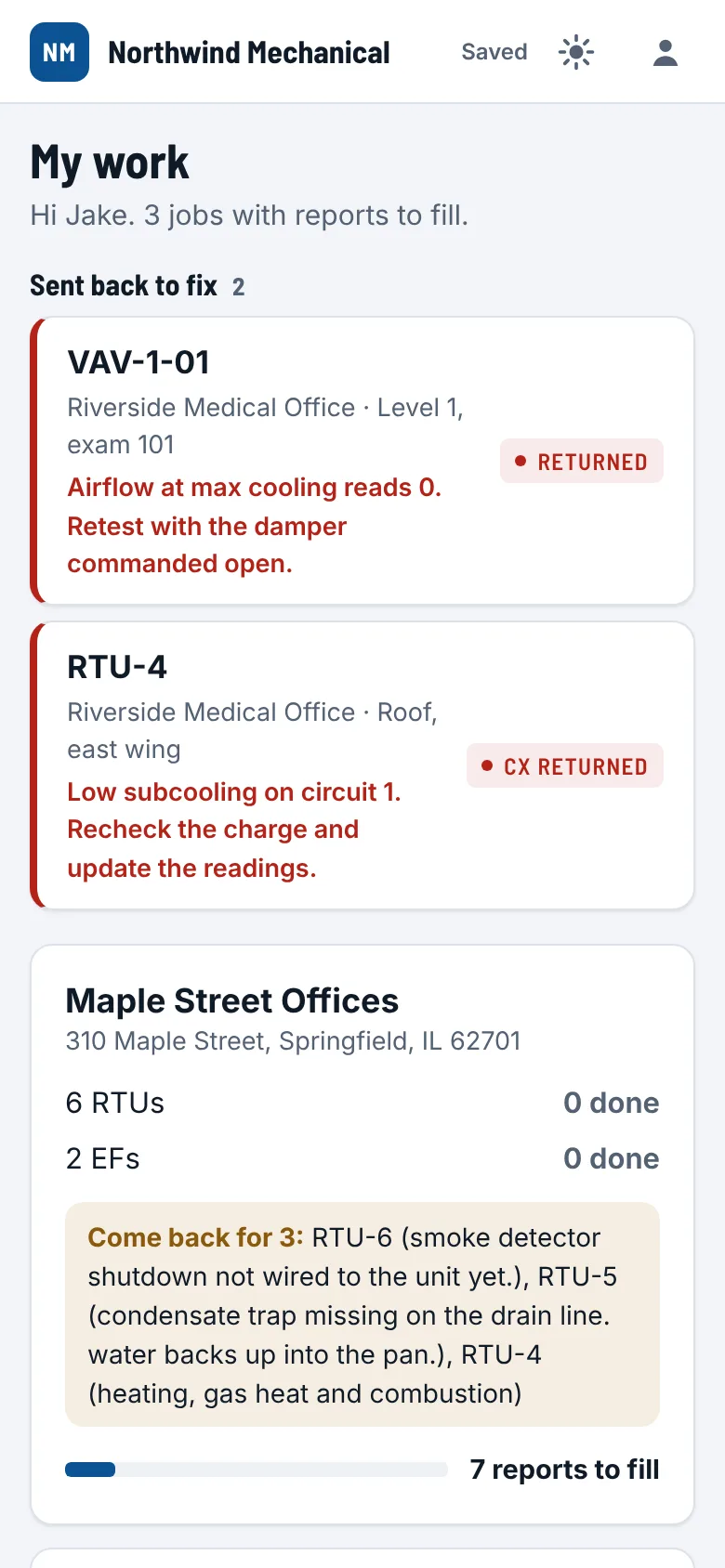
- My work is your first screen. One card per job.
- Sent back to fix sits on top. Do those first.
- Each card says what is left: "6 RTUs, 2 done".
- Tap the job. Tap the unit you are standing at.
Pick up where you left off takes you straight back to the last report you had open.
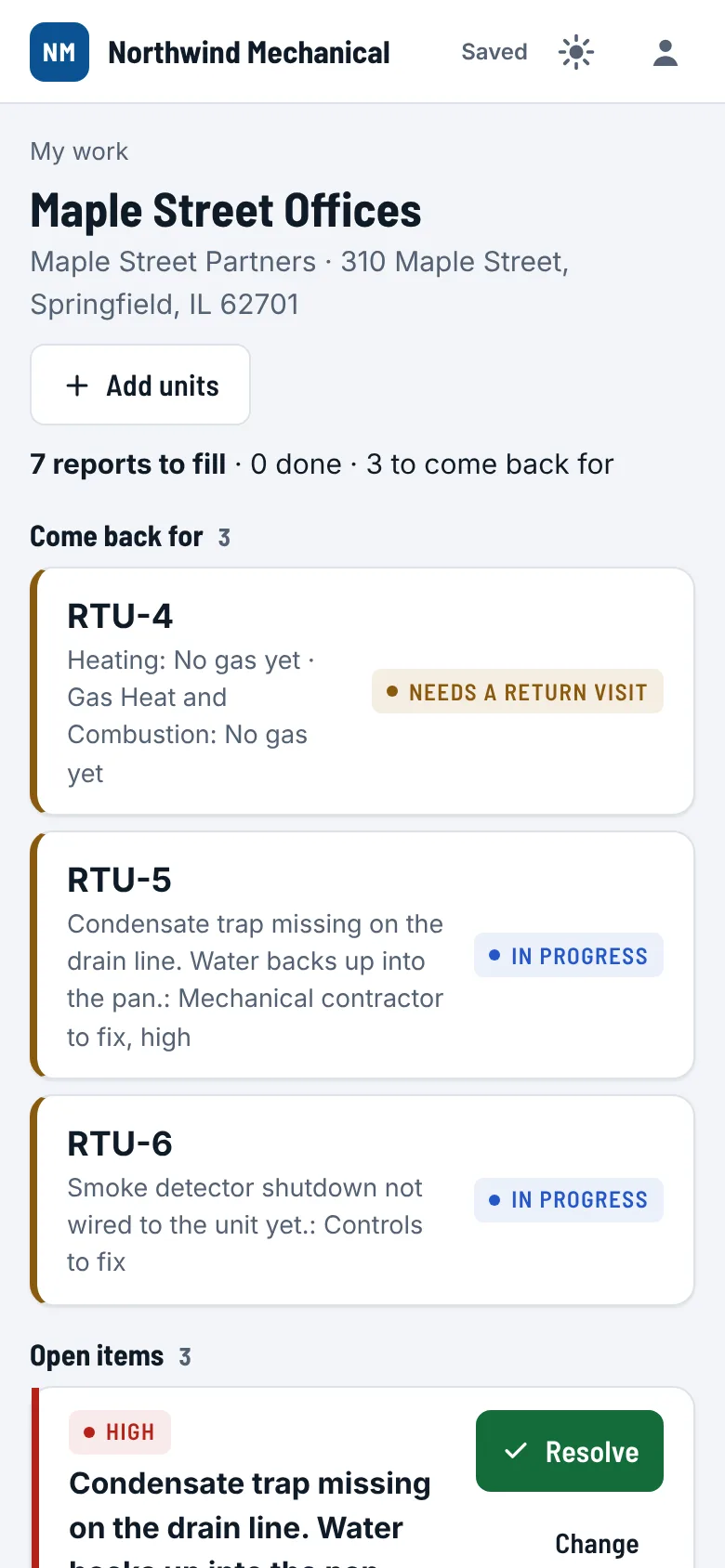
- The job lists every unit, by type. What is left comes first.
- Each row says how many readings are left.
- Unit not on the list? Tap Add units.
Fill a startup #
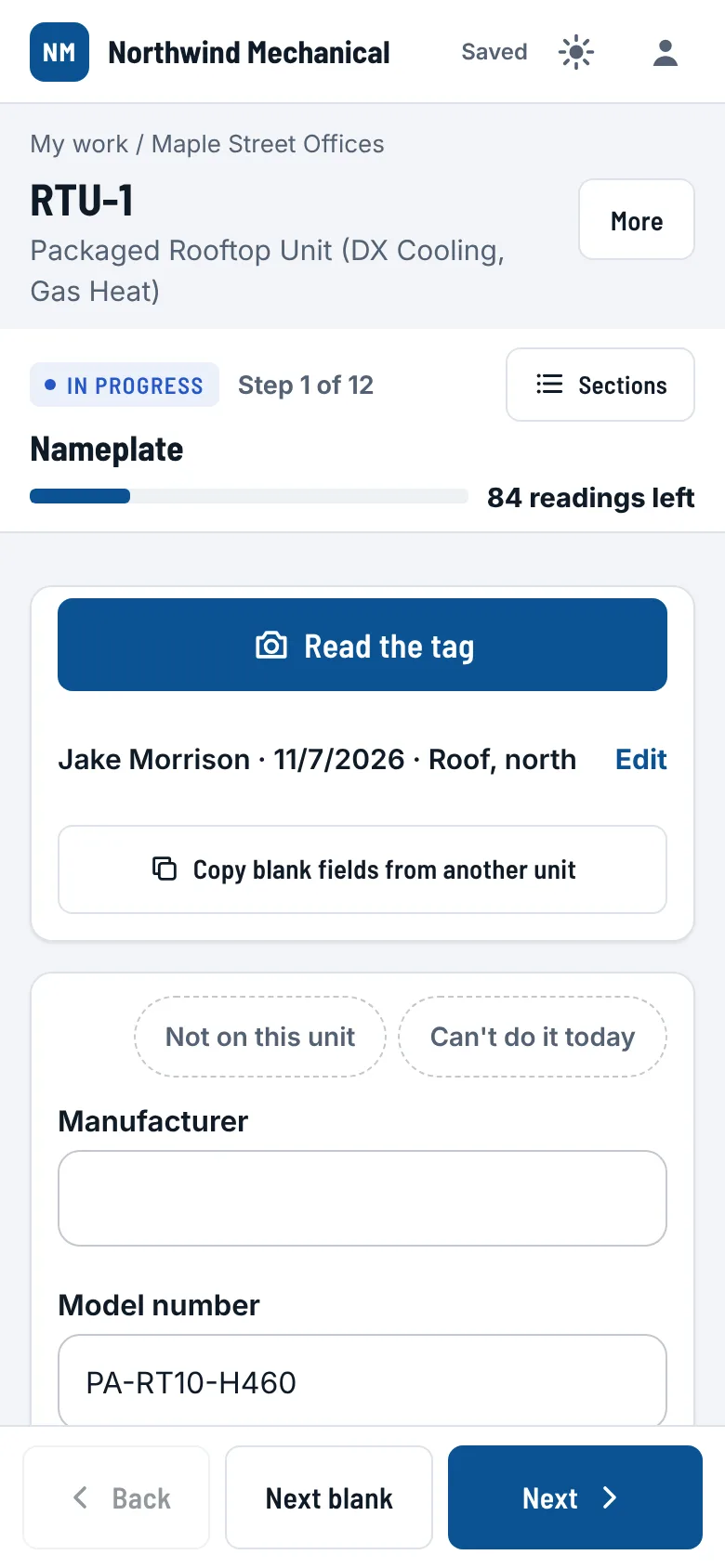
- One part of the report at a time: "Step 1 of 12".
- Type what the gauge or meter says. It saves by itself.
- Next goes on. Back goes back.
- Next blank jumps to the next empty box.
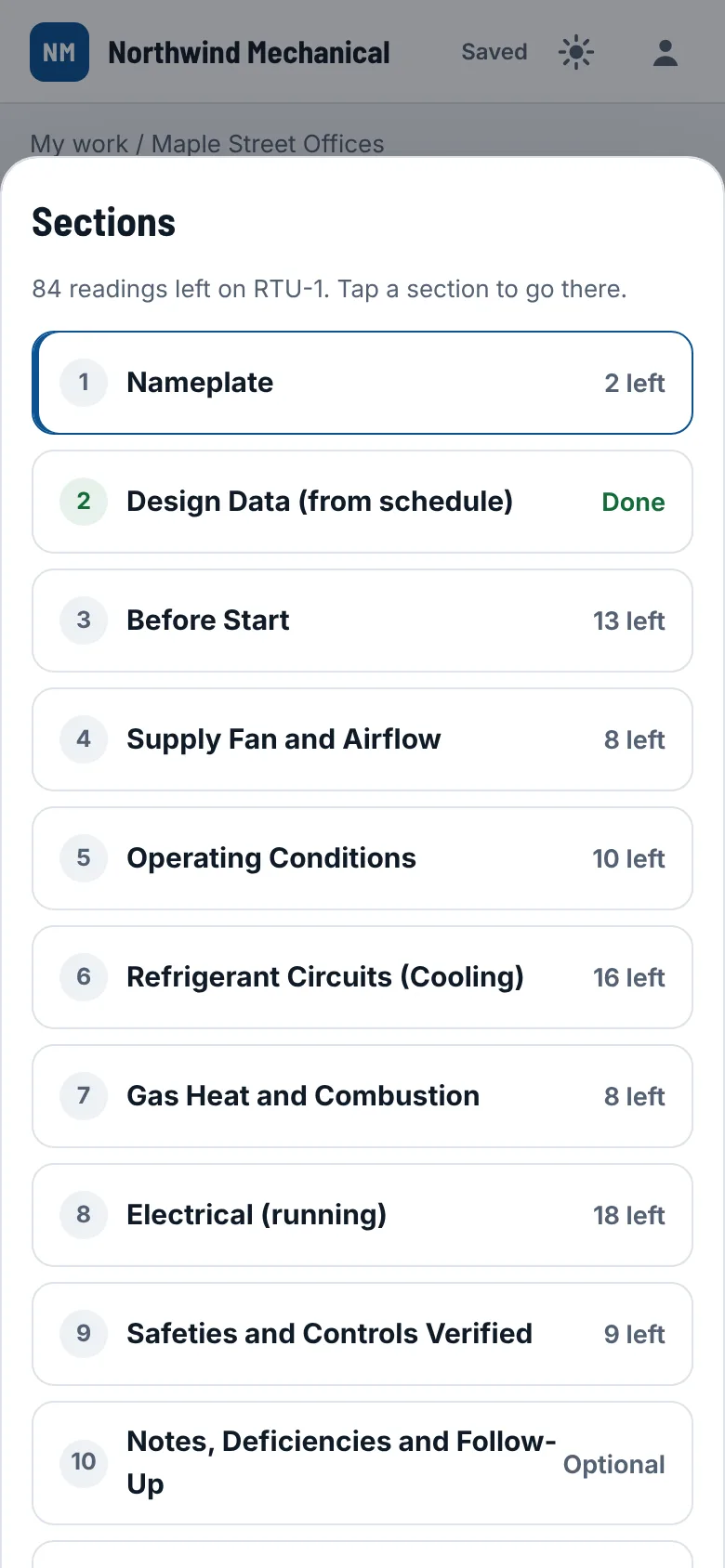
- Sections shows every part and what is left in each.
Your name and today's date fill themselves. The count at the top always says how many readings are left.
On a number, the ± key makes it negative (for a vacuum, or a temperature below zero).
- Tap a part in Sections to go there.
- Done parts say Done.
Read the tag #
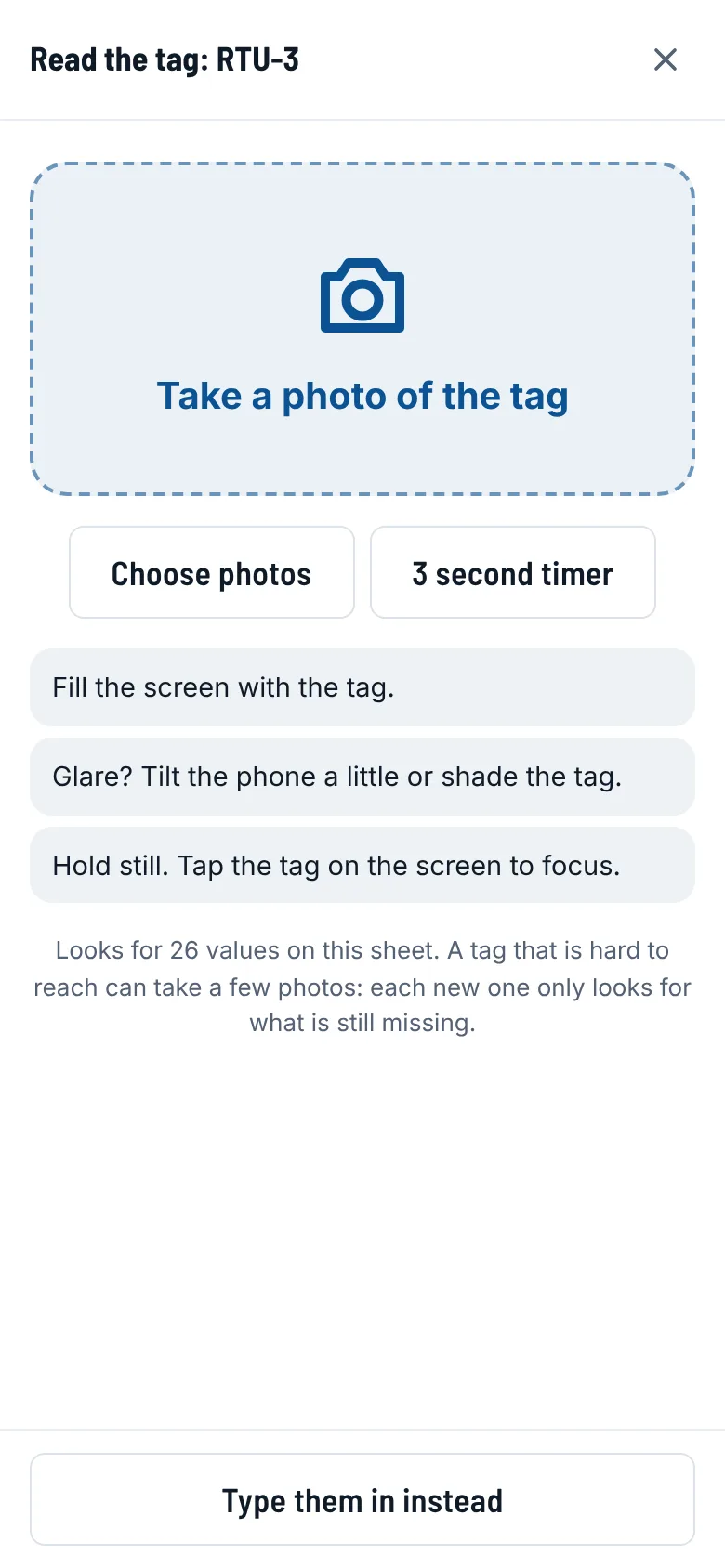
- On the nameplate step, tap Read the tag. The camera opens.
- Take as many photos as the tag needs: the whole plate, then close-ups of anything small or shiny, and the motor's or compressor's own plate if the sheet asks for them. A close-up of part of the tag is fine.
- Glare? Tilt the phone a little, or shade the tag. A photo you don't want: tap its X.
- Tap Read 3 photos (or however many). You're back on the form at once: keep working.
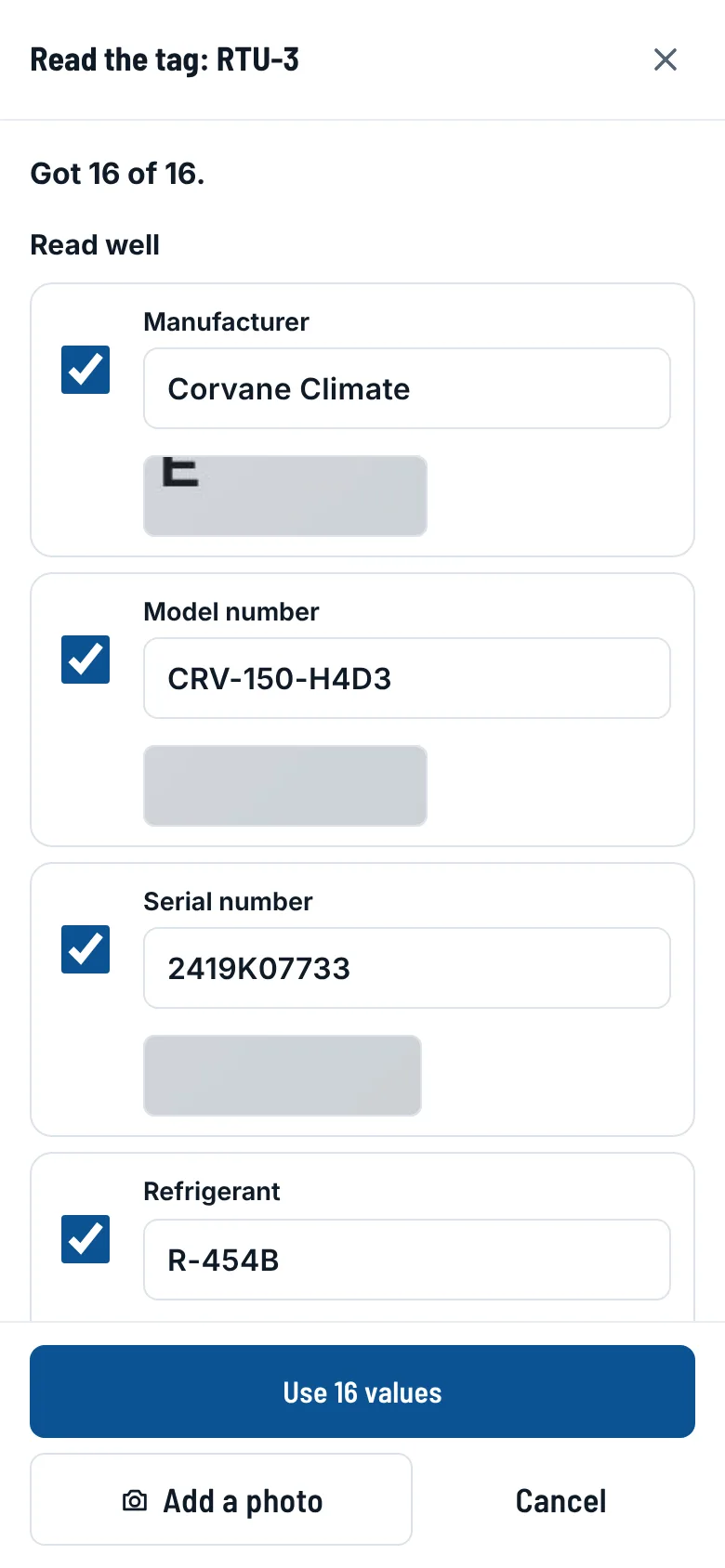
- The bar at the top says Reading the tag, then Tag read: 14 values to check. Tap it.
- Ticked values are sure. Check this: look at the little picture, then tick. Pick one: two photos read it differently, so pick the right one.
- Tap Use. Only empty boxes fill: anything you typed while it was reading stays.
No signal? The photos wait on the phone and are read when the signal is back. The bar says so.
It says AI is paused for this month? Your plan's AI tag reads are used. Type the values as usual, or ask your admin to allow more. No button at all? AI is switched off for your company: type the values in.
Being finishedA more careful tag reader is coming. It may ask for a close photo of just one value, like the serial number. The steps stay the same.
Fill the other units #
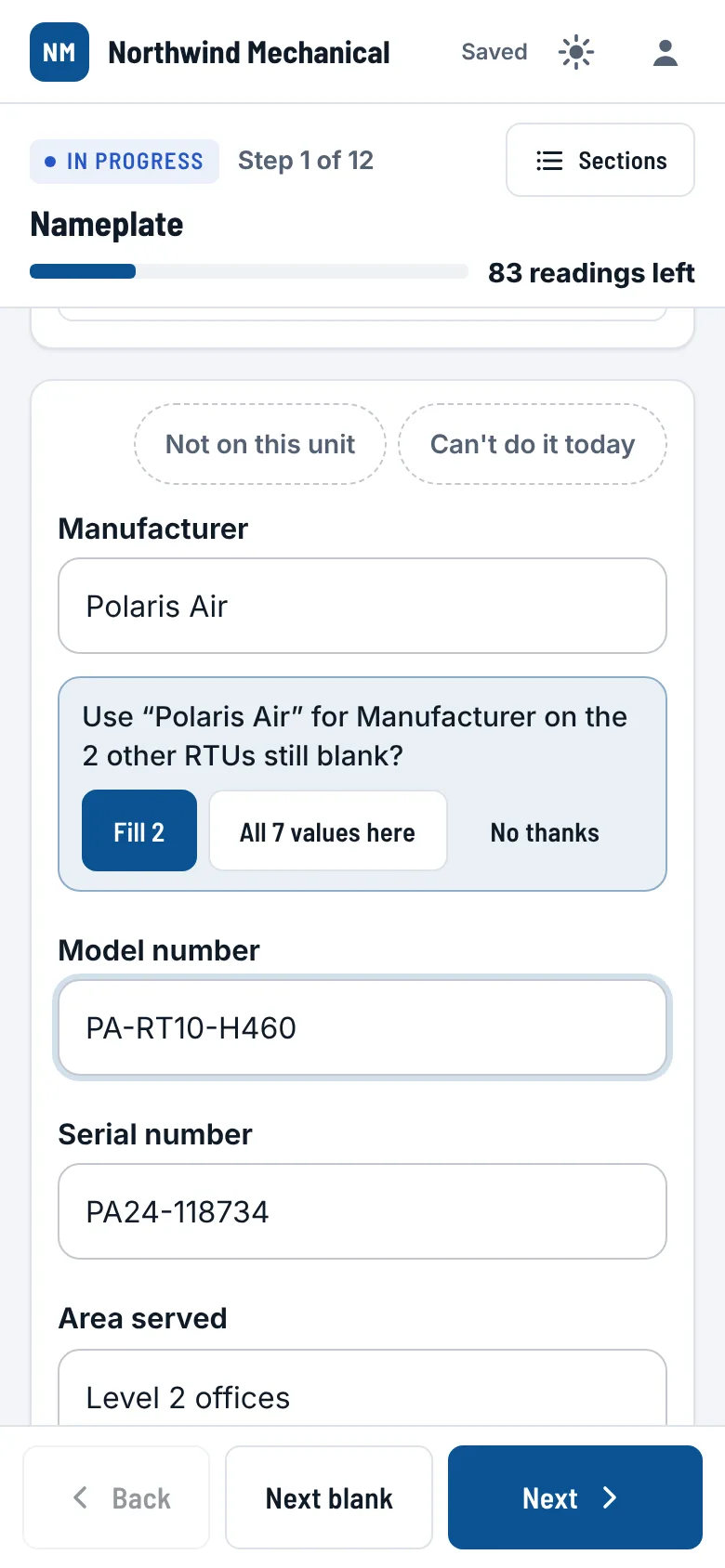
- Type the manufacturer on RTU-1.
- It asks: use it on the 5 other RTUs still blank?
- Tap Fill 5. Done for the whole job.
- Wrong? Tap Undo.
It never copies a serial, a tag, a location or a reading. Values that go with the model (RLA, FLA) only go to units with the same model number.
Under More: Copy blank fields from another unit.
Yes, No and N/A #
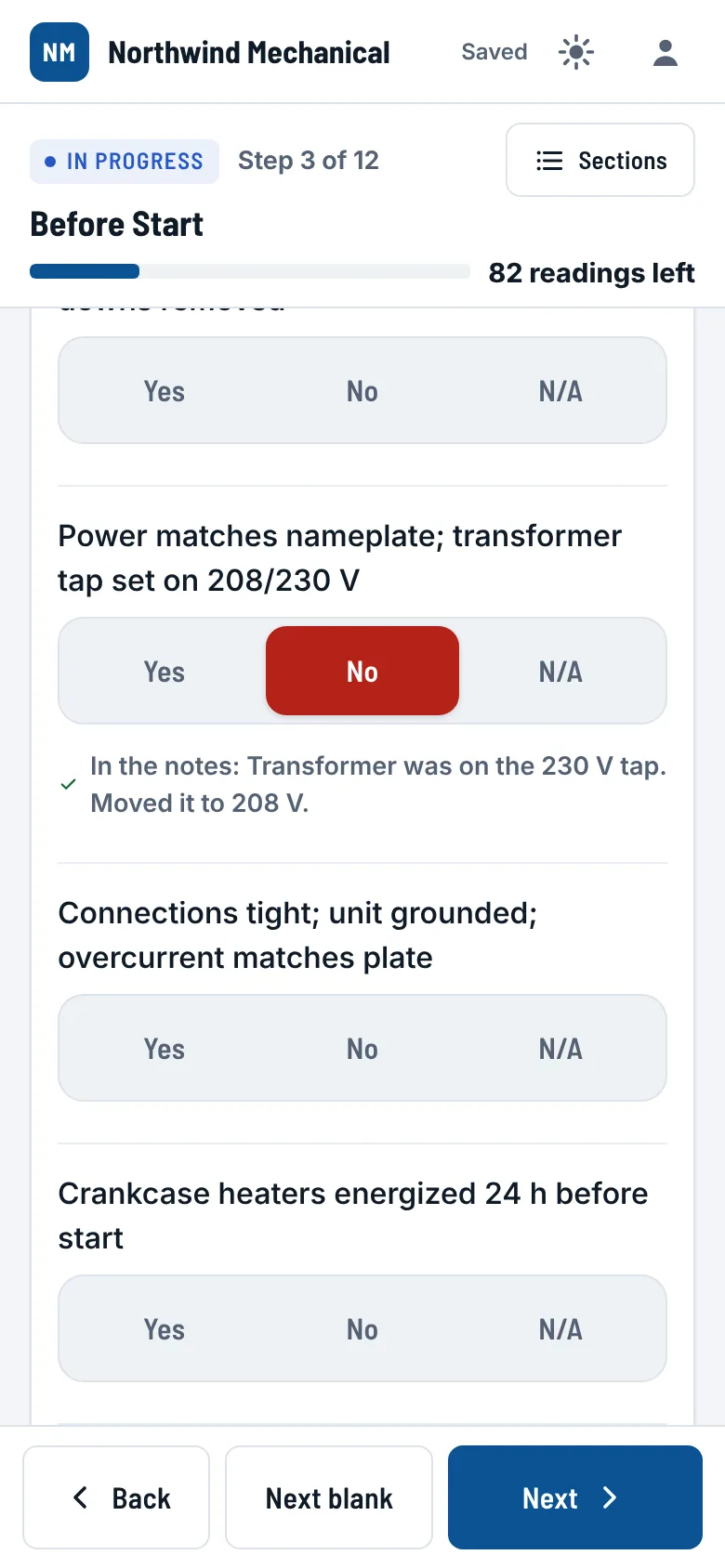
- Tap Yes, No or N/A on each line.
- All good? Mark all Yes, then change the odd one.
- Tapped No? Say what is wrong. It goes in the notes.
- Tap it again to clear it.
The numbers it works out #
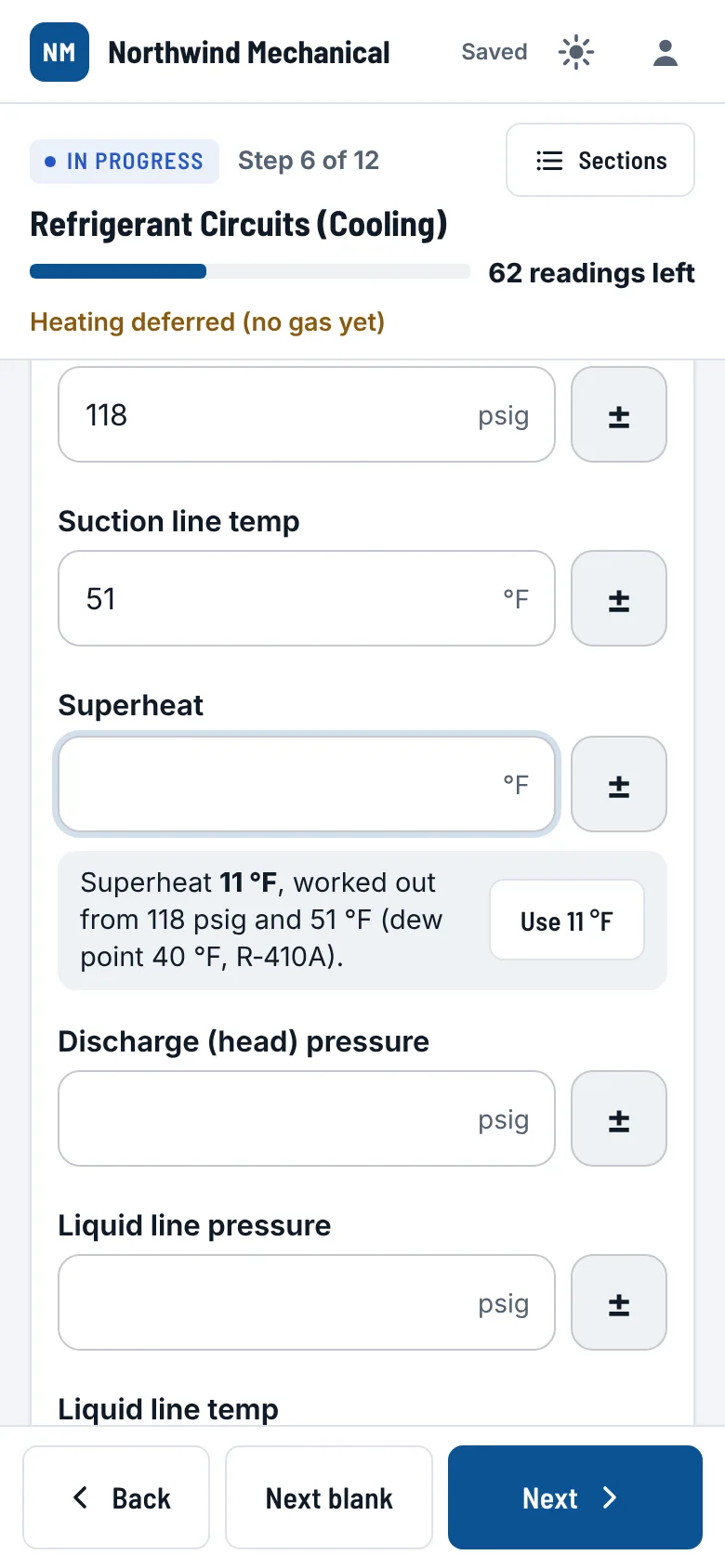
- Type suction pressure and suction line temp.
- It works out the superheat for the unit's refrigerant.
- Tap Use 11 °F to put it in.
- Same for subcooling, voltage imbalance, amps against the nameplate, temperature split.
Check this, Worth a look or Good to know under a reading is a suggestion. It never stops you. Tap Why? to see why.
The PT chart #
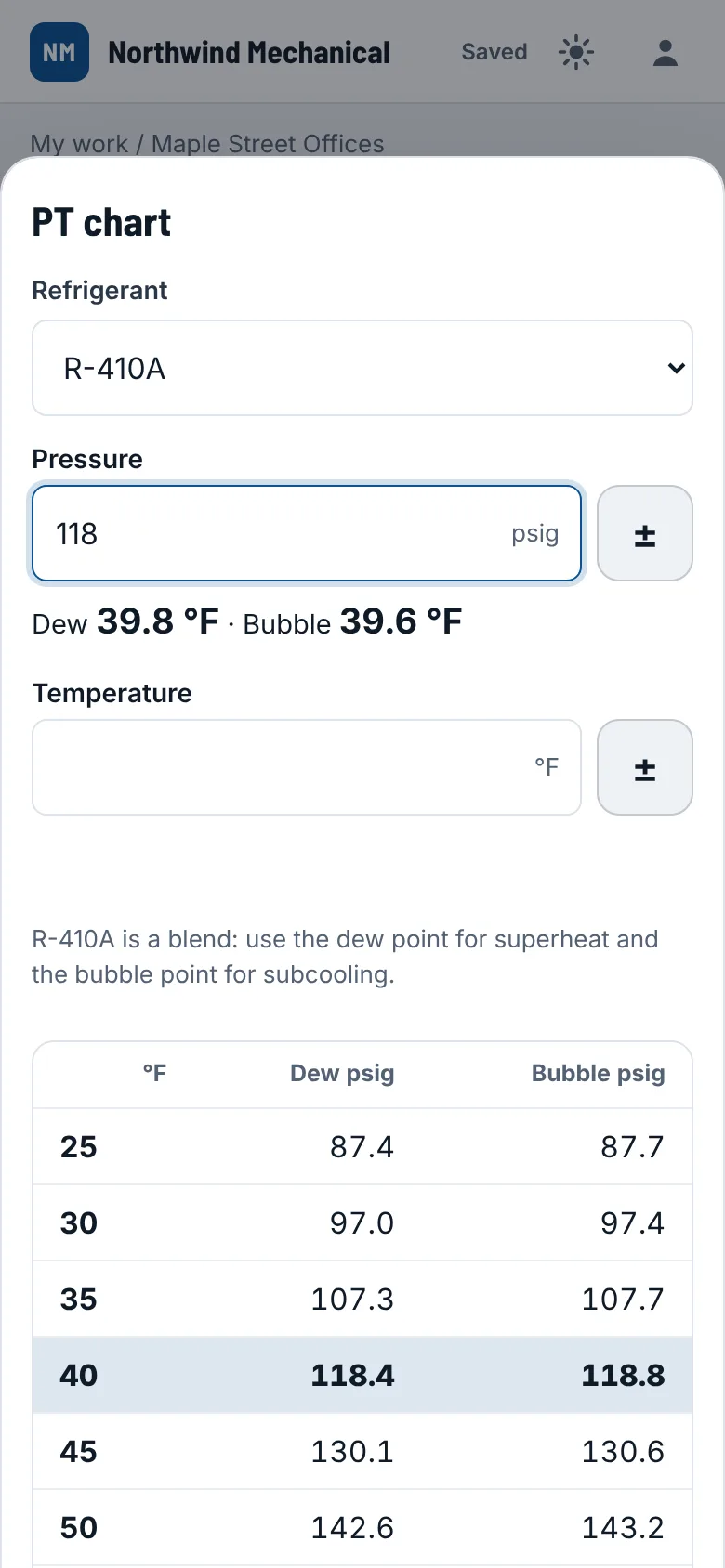
- Tap PT chart on the refrigerant step. Or find it in your menu.
- The unit's refrigerant is picked already.
- Type a pressure: you get the saturation temperature.
- Type a temperature: you get the pressure.
Blends like R-407C show two numbers: dew (for superheat) and bubble (for subcooling).
Outdoor temperature #
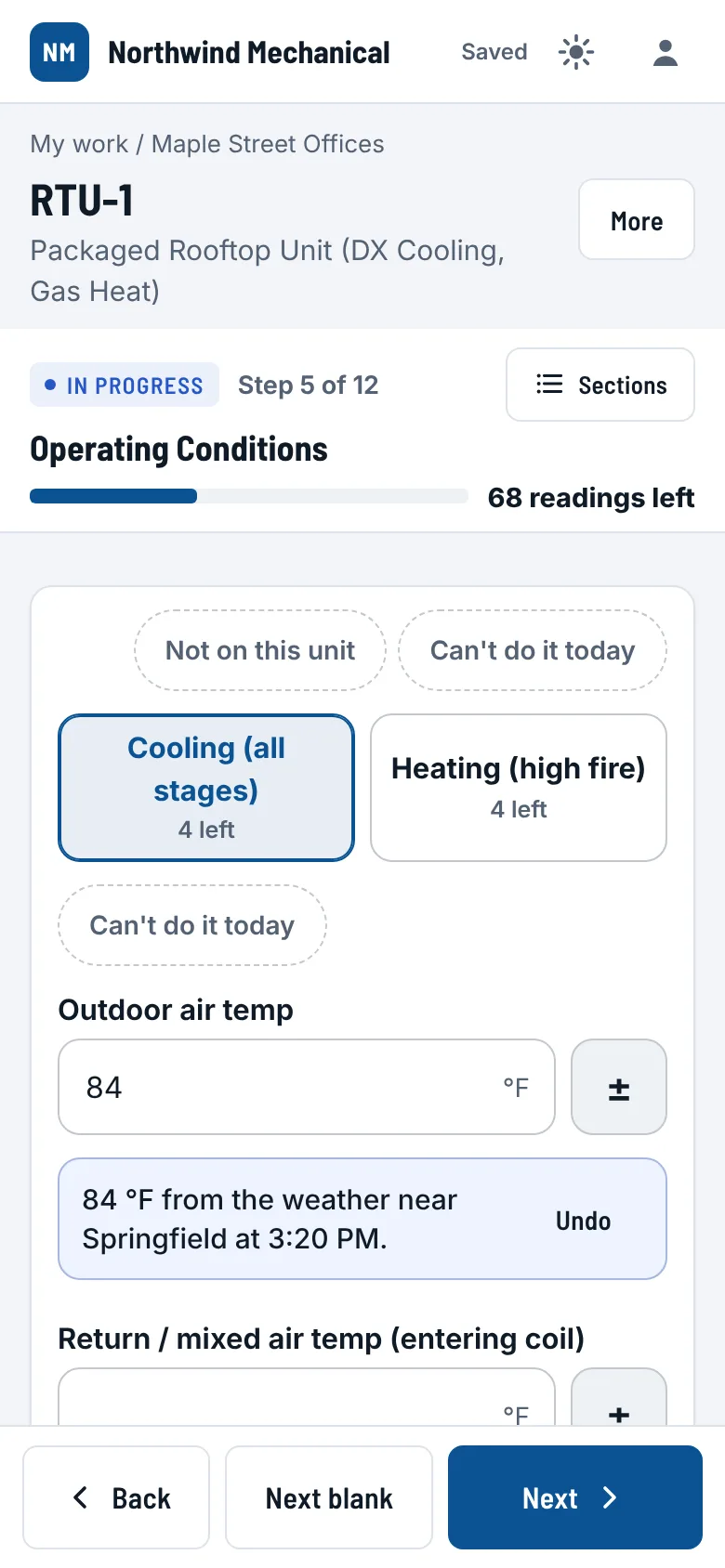
- Reach the step with outdoor air temp. It fills from the weather near the job.
- Your own thermometer says different? Type over it.
- Do not want it? Tap Undo.
No address on the job? Tap Use my location. The phone asks first.
Sun mode #
- Can't see the screen in the sun? Tap the sun at the top.
- Black on white, heavier lines, bigger boxes.
- Tap it again to go back.
The screen stays on while a report is open. No more waking the phone between readings.
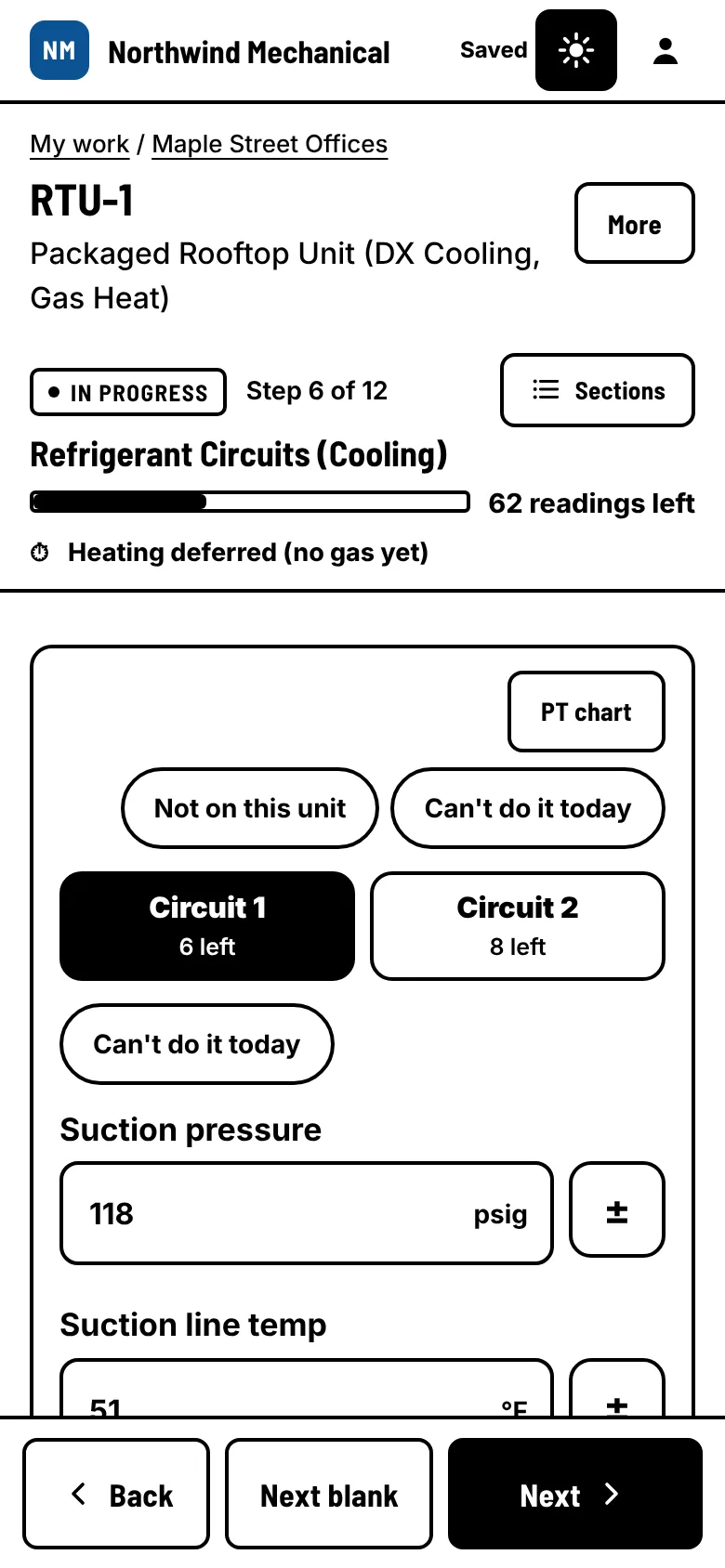
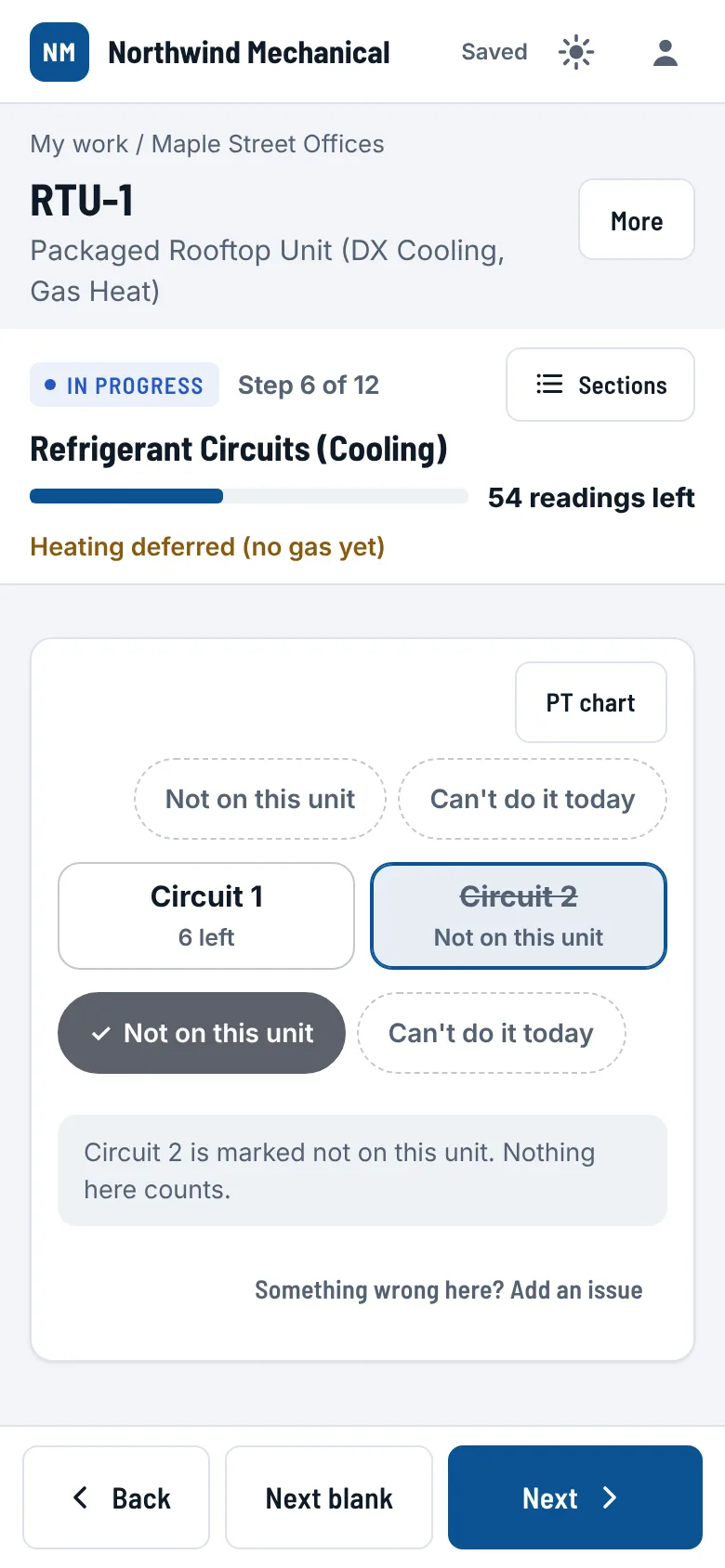
Not on this unit #
- No circuit 2? No power exhaust? Tap Not on this unit.
- That part stops counting. It prints as "Not applicable on this unit".
- Tapped it by mistake? Tap it again.
Picked single phase? L3 is marked not on this unit for you.
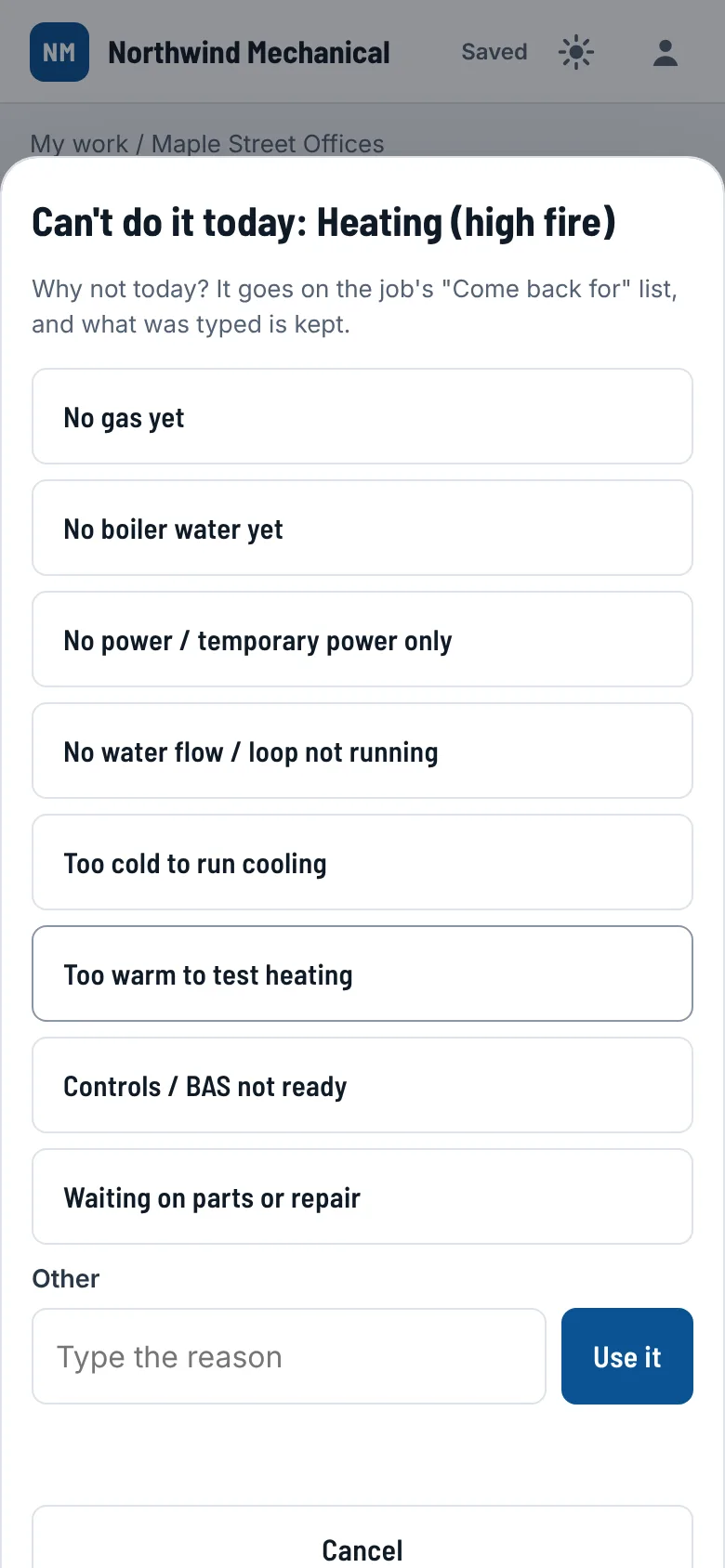
Can't do it today #
- No gas yet? Too cold to run cooling? Tap Can't do it today.
- Tap the reason. Or type your own.
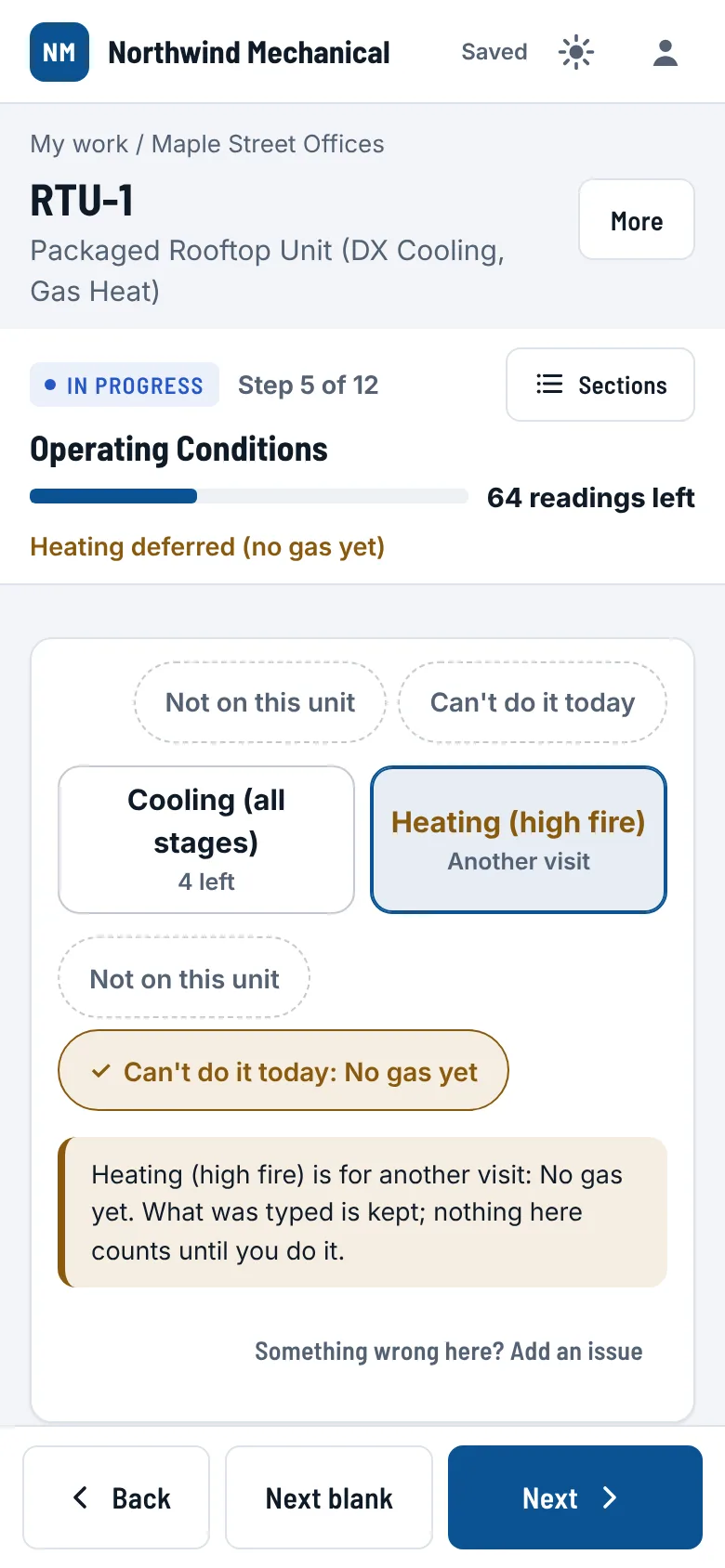
- What you typed stays. It goes on the job's Come back for list.
- Back to do it? Tap the same button again.
- The part says why, and the top of the report says it too: "Heating deferred (no gas yet)".
Something wrong? Add an issue #
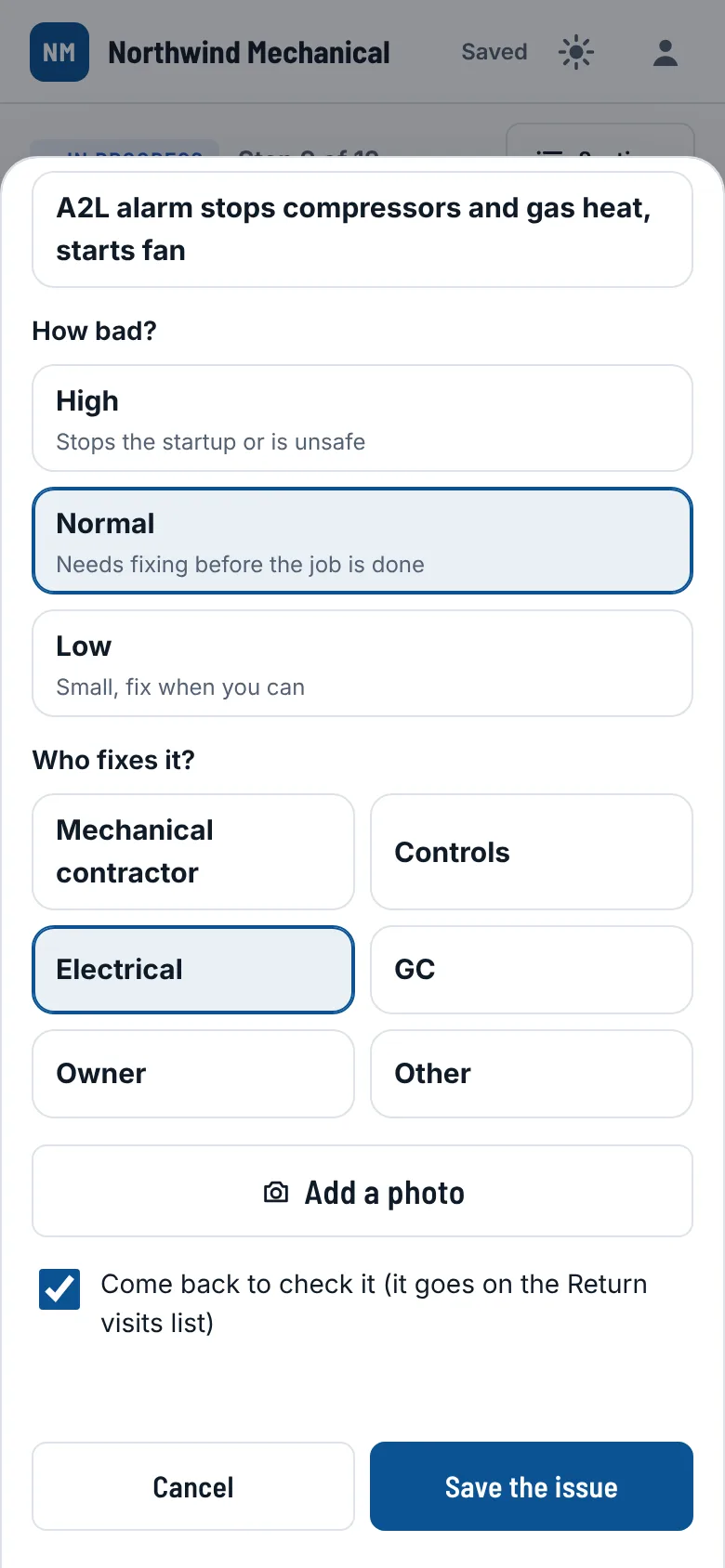
- Tap Something wrong here? Add an issue. Or, after a No: Someone must fix it.
- Say what is wrong.
- Tap how bad: High, Normal or Low.
- Tap who fixes it: mechanical, controls, electrical, GC, owner, or other.
- Add a photo. Tap Save the issue.
Leave Come back to check it ticked and it goes on the job's Come back for list.
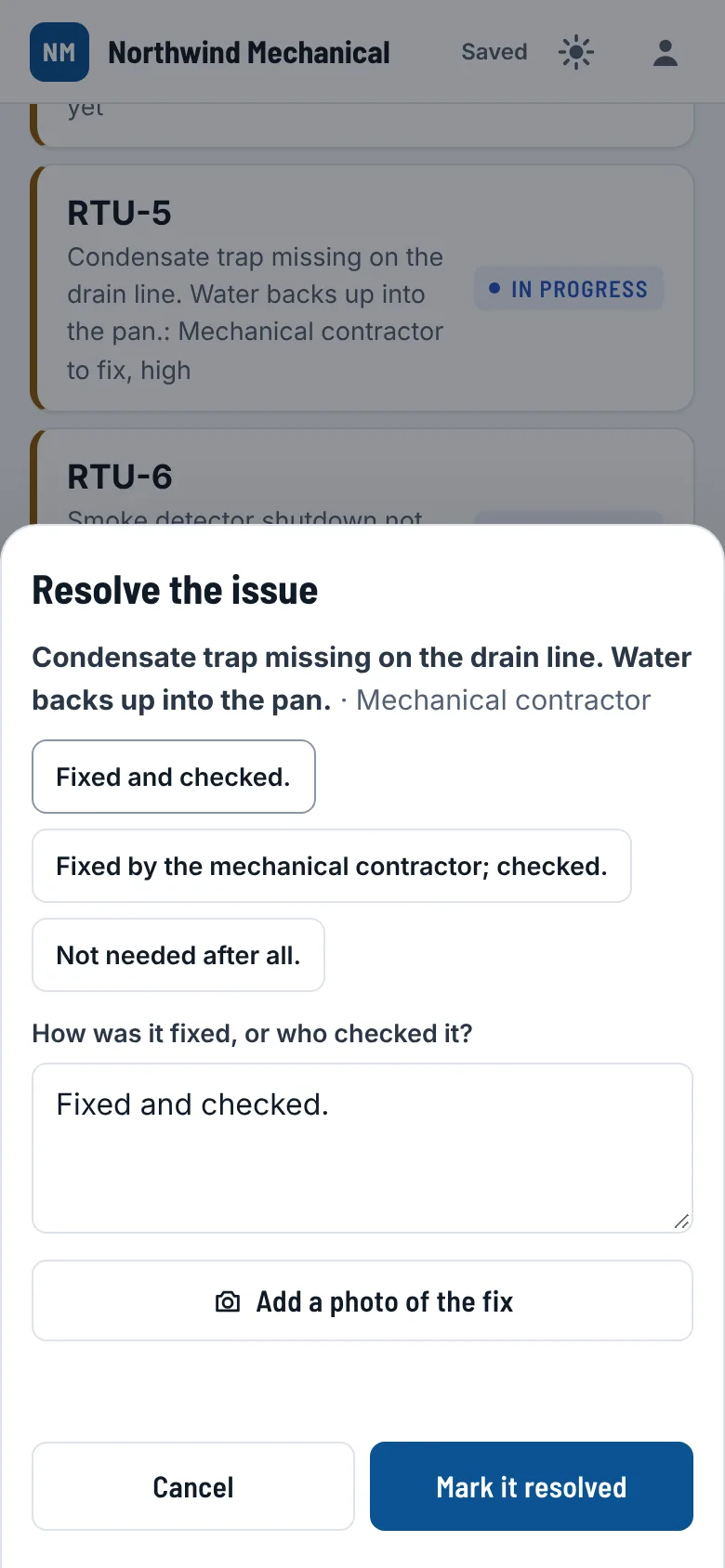
- Fixed? Tap Resolve on the item.
- Tap a ready note, or say how it was fixed. Add a photo of the fix.
- Tap Mark it resolved.
Photos and sign-off #
- Tap Take photo. Or pick from the phone's photos.
- Nameplate, readings, anything wrong.
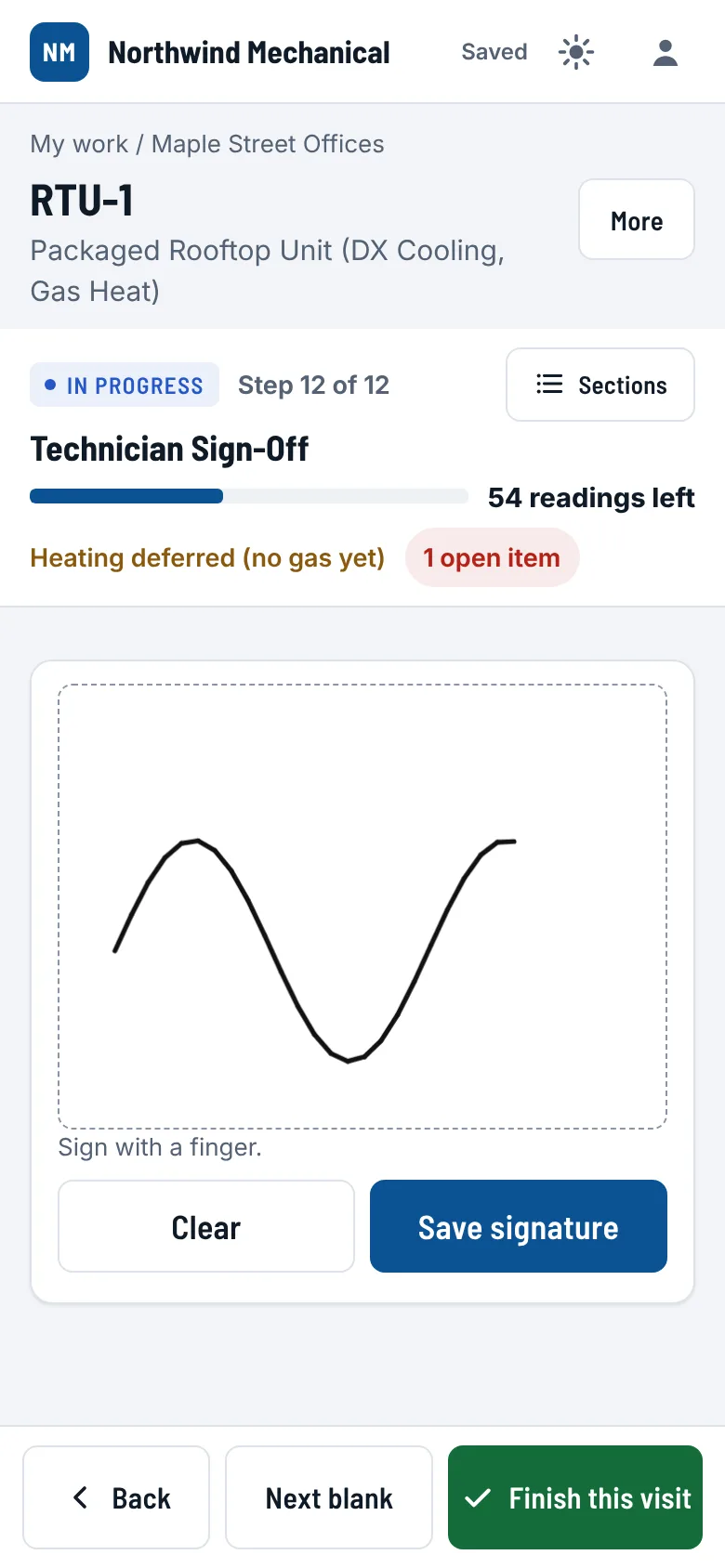
- Last step: sign with your finger. Tap Save signature.
Finish this visit #
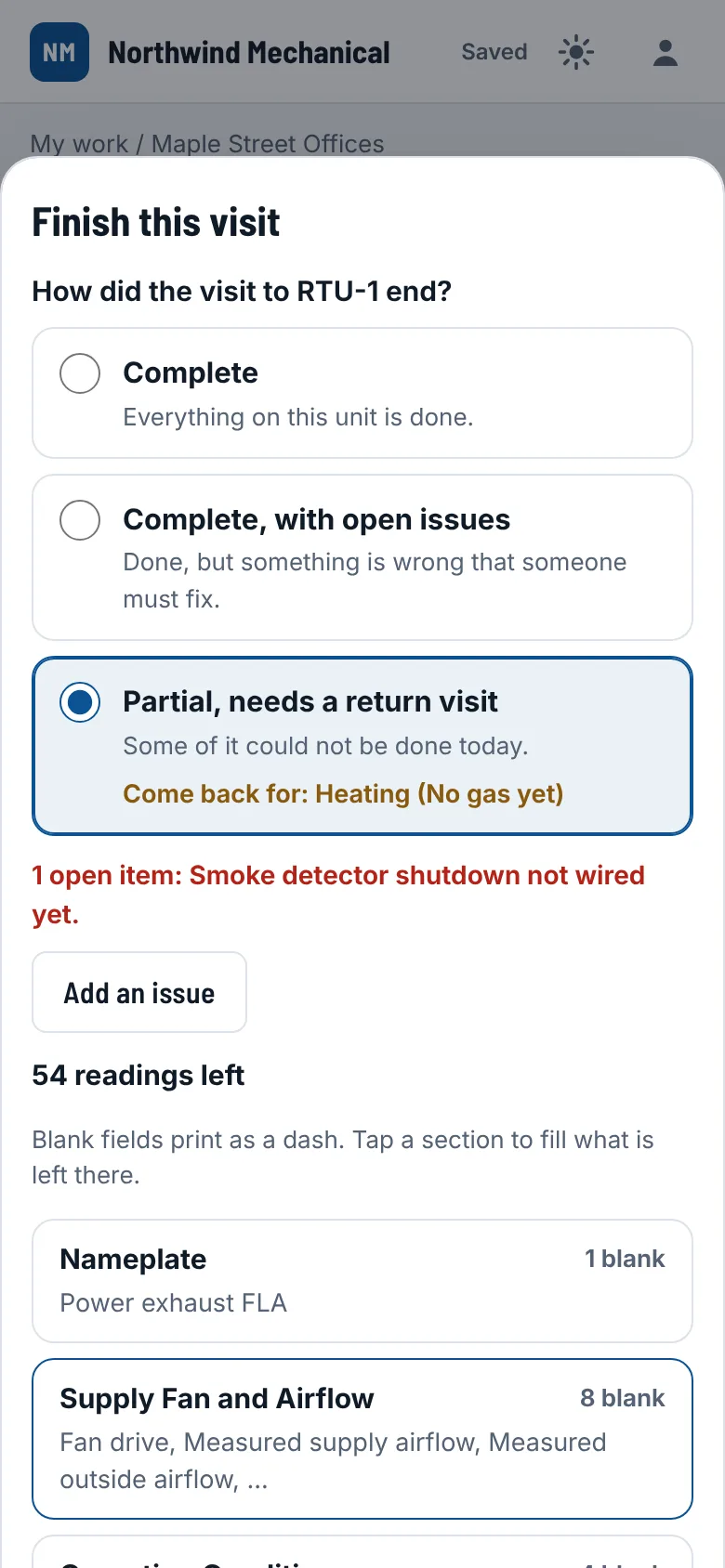
- On the last step, tap Finish this visit.
- Check how it ended: Complete, Complete, with open issues, or Partial. It picks the likely one for you.
- It lists what is still blank. Tap a part to fill it, or finish anyway.
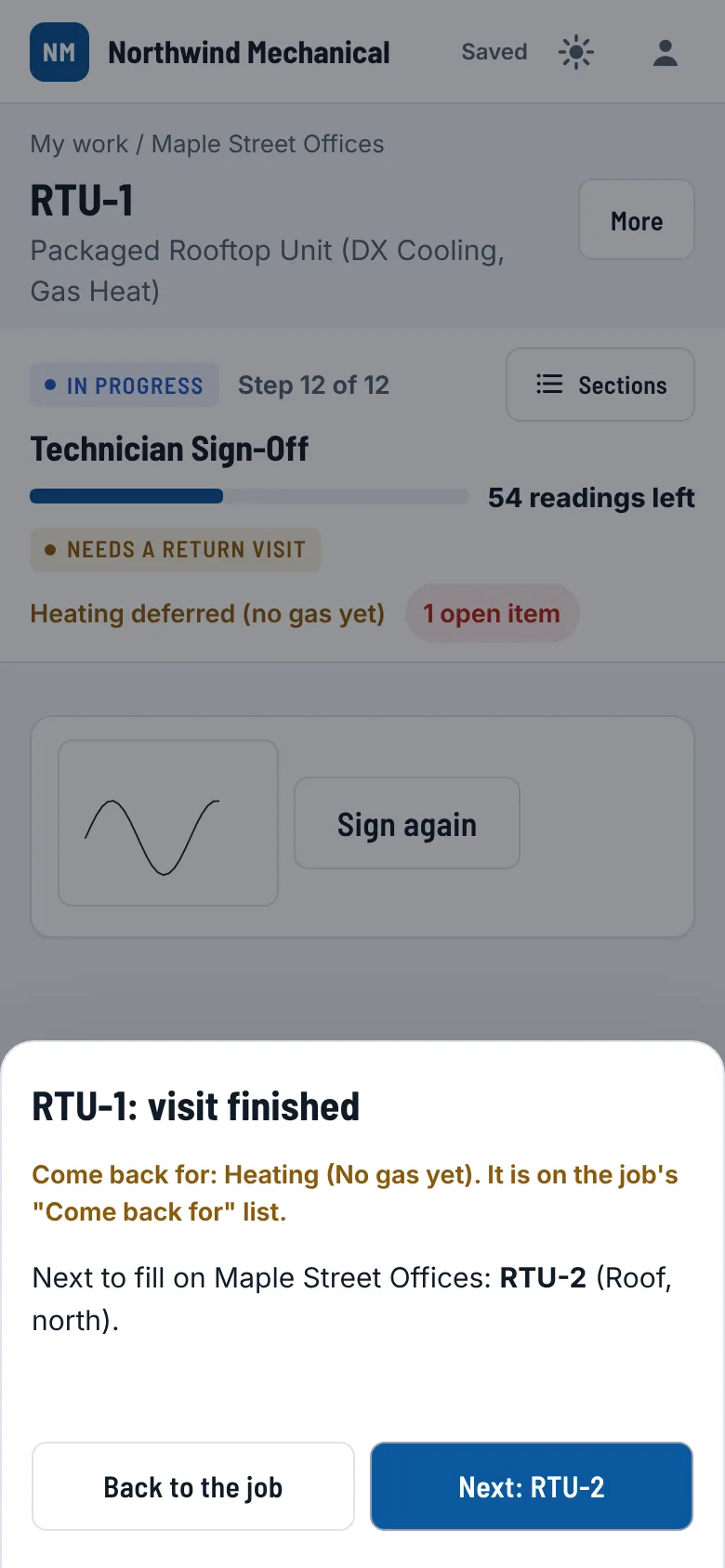
- Tap Finish visit. Then Next takes you to the next unit.
Blank boxes print as a dash. You can always finish. A note for the office is optional.
- Next to fill on the job is shown. Tap Next.
Return visits #
- Open the job. Come back for is on top, with the reason.
- Open items to fix show there too, with Resolve.
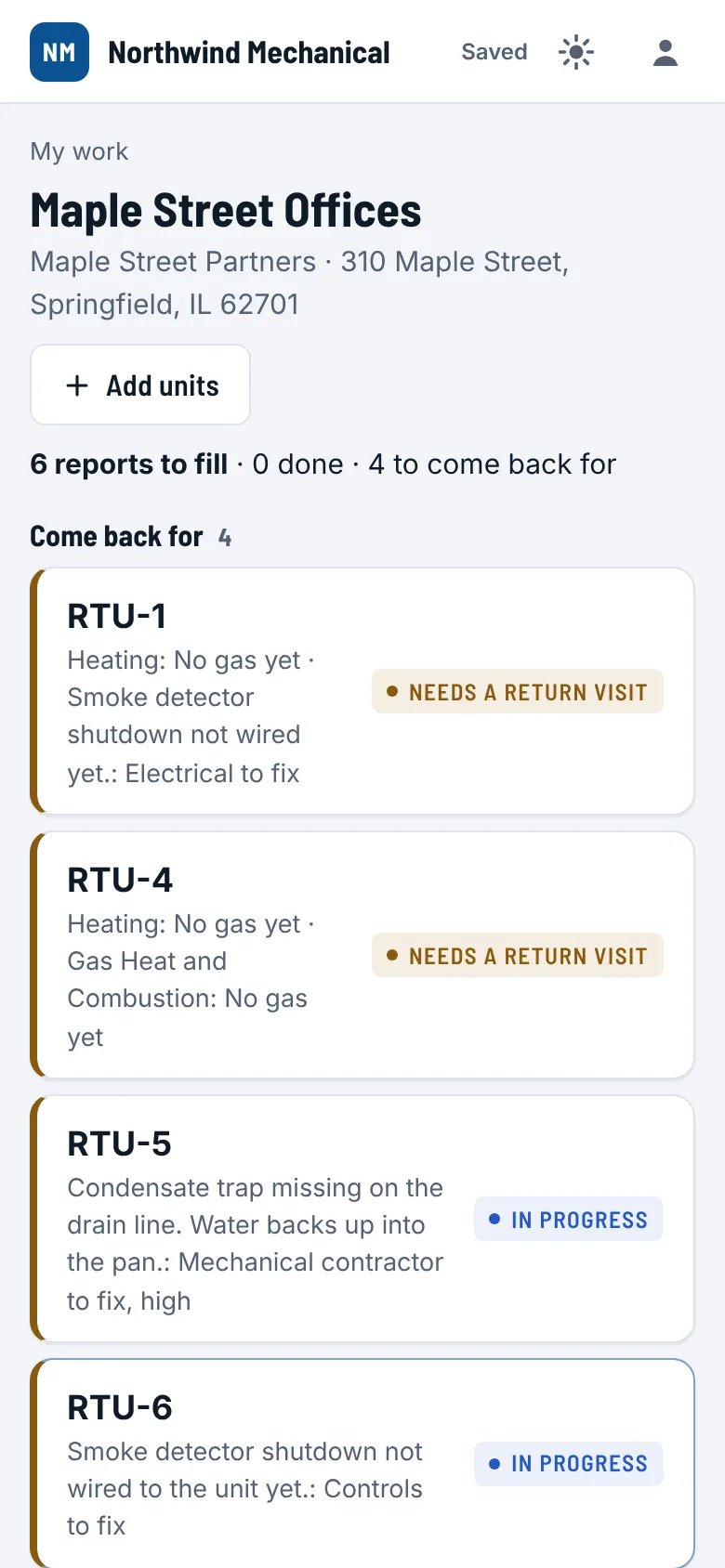
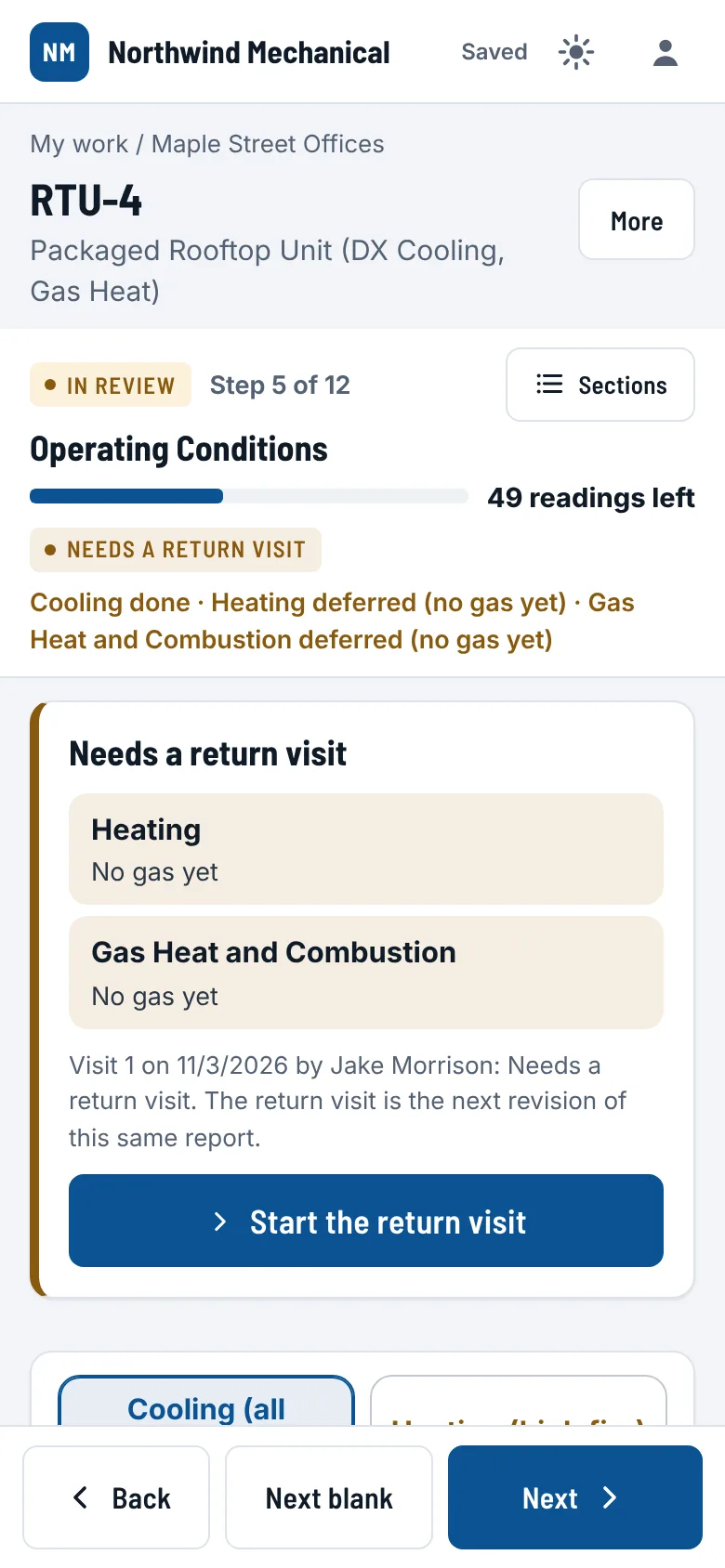
- Tap the unit. It says what is left, and why.
- Tap Start the return visit.
It is the same report, not a new one. Today's visit goes on it as visit 2.
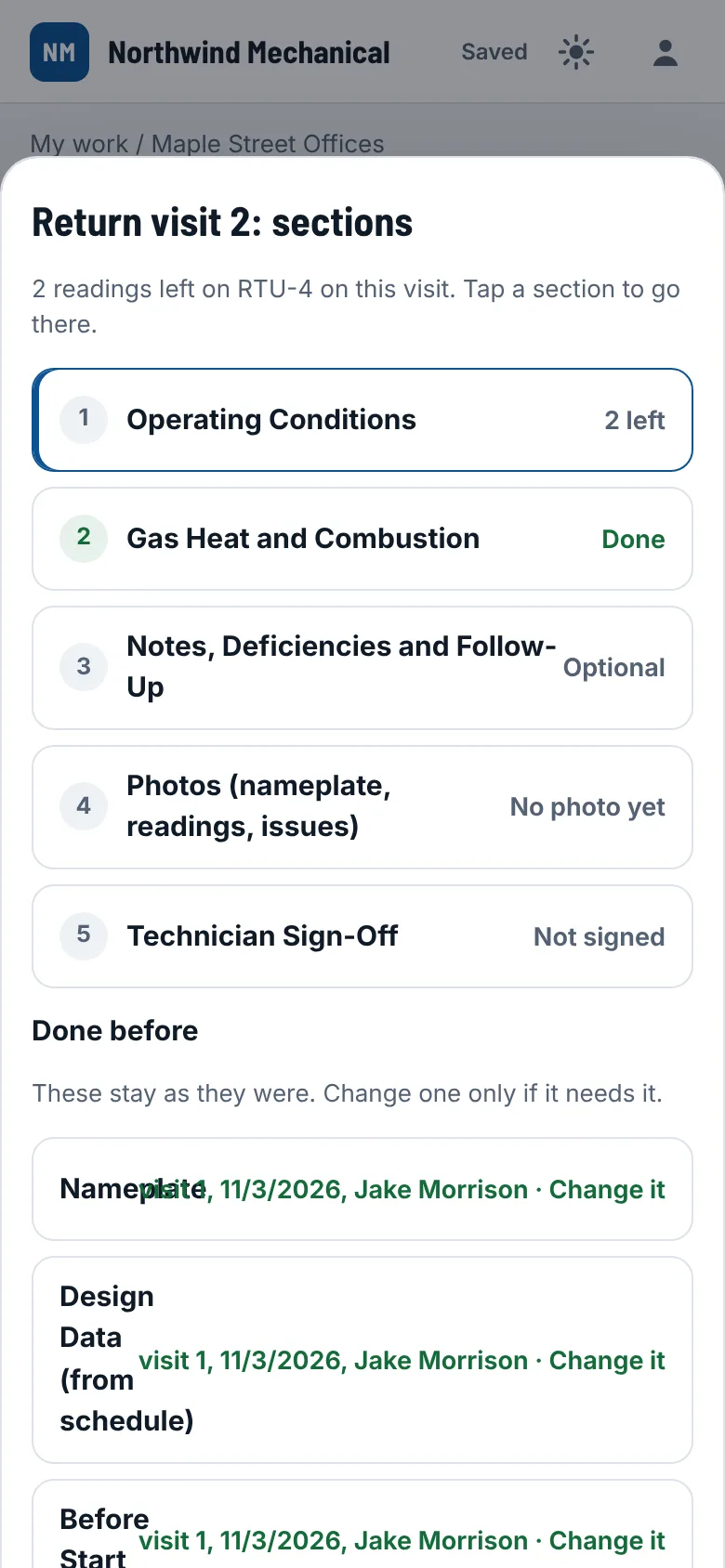
- Only the parts you put off are open.
- Everything from last time stays as it was.
- Need to change an old reading? Tap Change it.
- Sign. Tap Finish this visit.
Tapped Start by mistake? Tap Undo right away. Nothing changes.
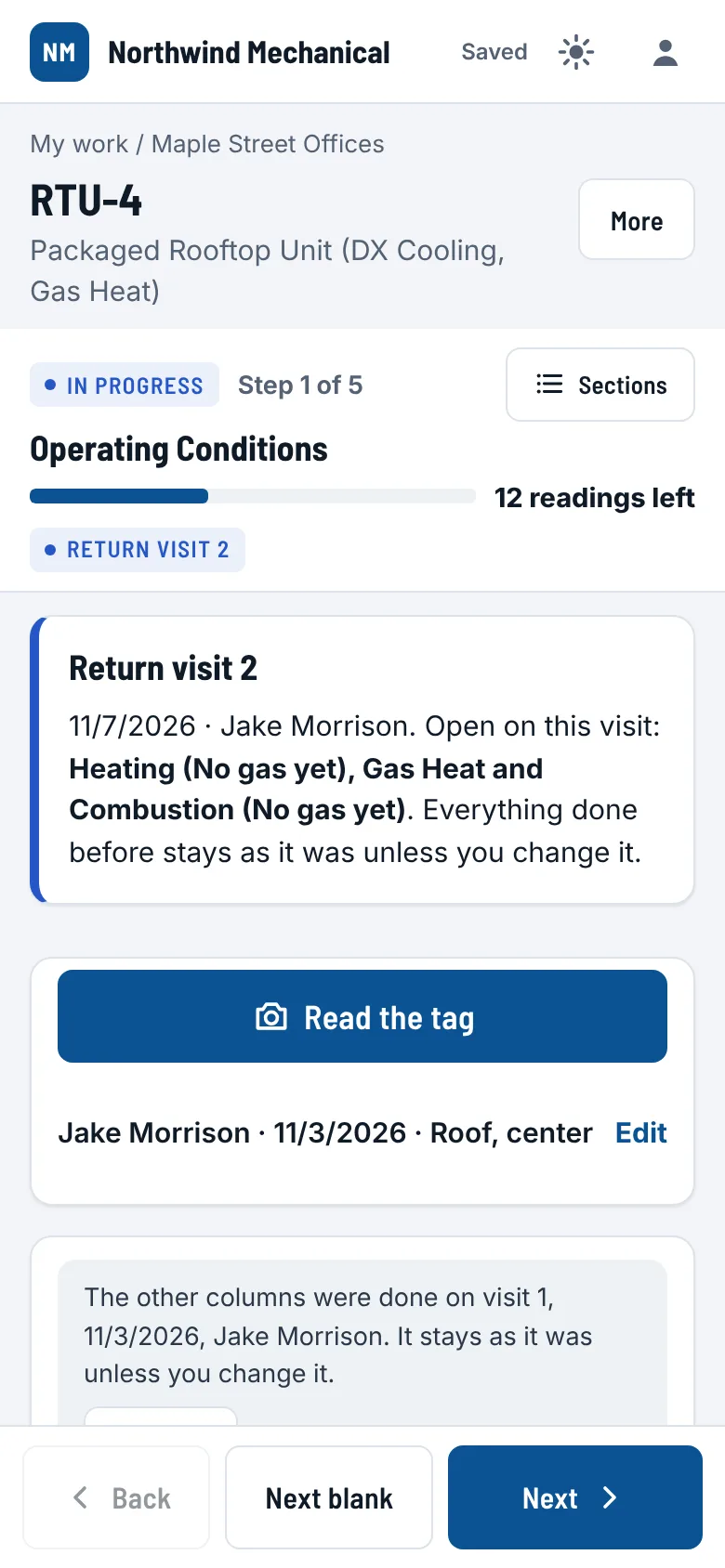
- Sections lists what is open now, and what was Done before.
Sent back to fix #
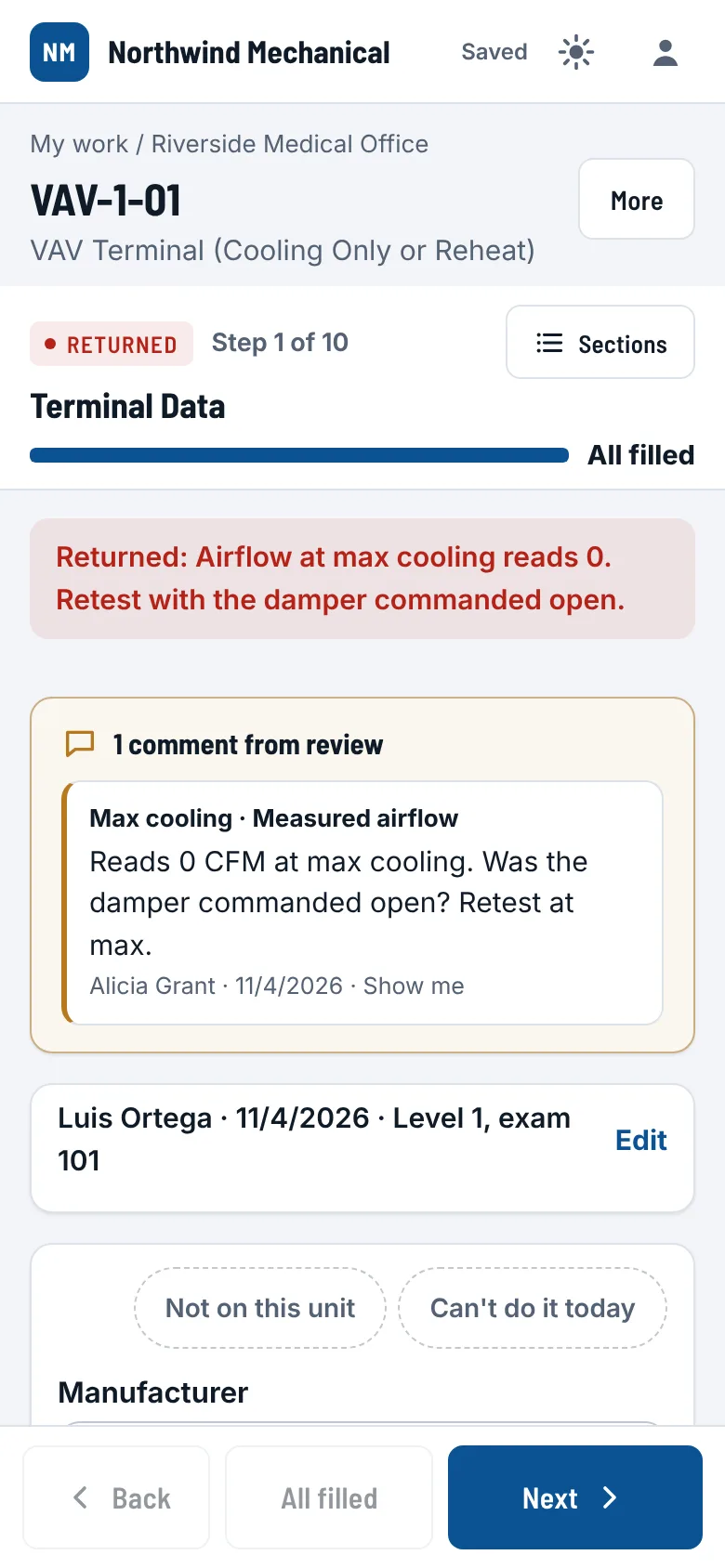
- It is on top of My work, with the note.
- Open it. The comments are at the top.
- Tap Show me. It goes to the reading.
- Fix it. Tap Finish this visit again.
No signal #
- Lost signal on the roof? Keep typing.
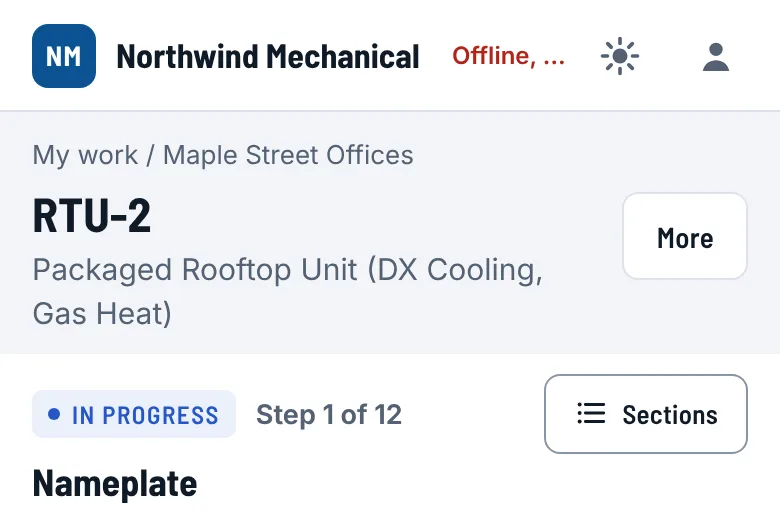
- The top says Offline, kept here. It is all on the phone.
- Signal back? It goes up by itself and says Saved.
- Do not sign out until it says Saved.
Being finishedOpening StartupSend with no signal at all is coming. For now, open the report while you still have signal, then go up on the roof.
Quick answers #
- Typed it wrong?Type over it. Every change is kept.
- Wrong unit?Fix the unit name in the details at the top (tap Edit).
- Need the whole form?More, then Show the whole form on one page.
- Want the PDF?More, then PDF of this report.
- Report locked?It is approved or with the Cx provider. Ask the office to reopen it.
- Forgot your password?Email me a sign-in link, on the sign-in screen.
- Your name wrong on reports?Your menu, then My name on reports.
- Something broken?Your menu, then Problem or idea?
Leave the clipboard in the truck.
The office sets up the job. You fill the startup on the roof. The report is done when you leave.